Creating a New Draft Controlled Document
Index
- Introduction
- Permissions & Settings For Document Creation
- Permissions
- Roles
- Settings
- Creating Draft Documents
- New Controlled document
- Managing Controlled Document Categories
- New Controlled document
- Document Types
- COSHH Documents
- COSHH Document - Special Components
- Documents
- Document - Special Components
- External Documents
- External Document - Special Components
- Health and Safety Documents
- Job Descriptions
- Job Description - Special Components
- Policies
- SOPs
- SOP - Special Components
- Managing Customisable Fields
- COSHH Documents
- Viewing New Draft Documents
- Draft Document with Viewable Source File
- Draft Document with Non-Viewable Source File
- Reviews Tab
Introduction
This guide describes the process of adding new controlled documents to iPassport. It focuses on creating individual documents and understanding the elements which conform them. The process of adding documents in bulk is discussed in the user guide, Document Importer.
Documents created individually through this method will be in draft state and will require an authorisation process before they can go into circulation.
There are 7 different types of controlled documents in iPassport and these are described in the Document Types section, including details about their features and parameters.
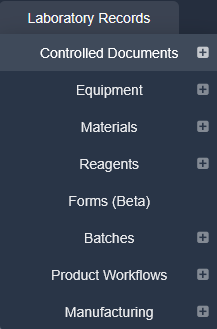
New documents are created and found under Laboratory Records > Controlled Documents. Menu names can be customised for each organisational unit, so these menus may appear under different names on your site.
| Tip |
Where a plus [+] sign appears next to a sub-menu item (e.g., the Controlled Documents sub-menu), it is a shortcut to the creation page for records of that type. The [+] sign is only shown for record types that can be created from the menu, and only if you have permission to create them, so some sub-menu items (such as Inspection Prep) never show it. |
Next step:
The next article covers Permissions and Settings for Document Creation
Was this article helpful?
That’s Great!
Thank you for your feedback
Sorry! We couldn't be helpful
Thank you for your feedback
Feedback sent
We appreciate your effort and will try to fix the article