Workflows Module
Introduction
Workflows allow designing processes within iPassport and then provide an intuitive plan of action which can be followed throughout the operation. A workflow will normally contain a series of sequential steps in which users, tasks and targets can be set. The completion of one step will naturally lead to the next one and the system will automatically generate tasks and notifications for the users involved. Events are task driven so they can be monitored and don’t get left unattended.
Workflows are currently implemented in the document review and publishing processes. The focus of this series of articles will be on Document Review Workflows and document Publishing Workflows. At present, workflows apply to controlled documents only, and will be gradually extended to other areas.
Document Review Workflows and Publishing Workflows
The document review process can be tailored to individual requirements with the use of Document Review Workflows. A workflow can be configured with different rounds of reviewers and it is also possible to add an approval step, making it easy for someone to sign off the review when it has been completed appropriately. This approval step would be perfect for organisations where the lab director is required to add their signature to all document reviews or simply where an administrator would like to check over a review before it is closed out.
Document Publishing Workflows come into play when a new document or a new version of a document is created. These remain in draft state until they are formally authorised. The ‘publishing workflows’ allow defining a series of steps when more than one person is required to authorise a controlled document. As with review workflows, a hierarchy can be established so that authorisations are done in a given order. There is an optional final approval step which can be treated as the last authorisation or as a sign-off by other stakeholders. The approver is also recorded as an authoriser of the document, unless they are already listed as one, so their name appears alongside the authorisers from the workflow’s rounds rather than only when no other names are listed.
A workflow can be set to be applied to all new documents in an OU of a certain type (e.g., just SOPs or just Policies). These defaults are set per type of document, so applying a workflow to every new document in an OU means setting a default for each type in turn. There are also methods to assign workflows to individual documents or to enforce them on all existing documents of a certain type in a given OU.
| Note |
| Enforcing a workflow on existing documents applies it to every document of that type in the OU, replacing any workflow that had previously been assigned to an individual document. Where any of those documents have a workflow in progress, that workflow will be restarted. |
Custom workflows can also be created and edited within a document but cannot be shared with other documents. Two custom workflow behaviours are automatic. If a document is created in an OU that has no default review workflow set for that type of document, a blank custom review workflow is created for it without any user action. Where a document has a custom workflow, a copy of that workflow is carried forward onto each new version of the document.
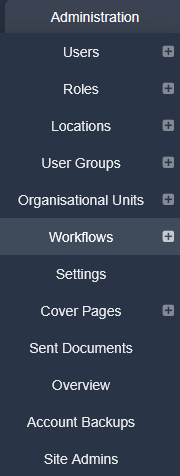
The Workflows module can be found by navigating to Administration > Workflows if the user has the relevant permissions. Both of these menu labels can be renamed for an OU through the Menu/Tabs Translations settings, so the wording seen in a given system may differ from the one used in these articles.
Contents
- Workflows Permissions and Settings
- Creating/Deleting Workflows
- Sharing Workflows with other OUs
- View or Assign Documents in Workflows
Next Step:
The next article covers Workflows Permissions and Settings
Was this article helpful?
That’s Great!
Thank you for your feedback
Sorry! We couldn't be helpful
Thank you for your feedback
Feedback sent
We appreciate your effort and will try to fix the article