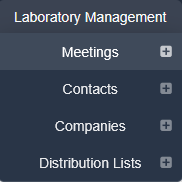
Meetings can be created by users with Meetings:Create Meetings permission by Laboratory Management > Meetings then selecting the New Meeting tab. The plus sign [+] next to the Meetings sub-menu item is a shortcut to this tab. The Meetings menu item is only shown to users with Desktop:Show Meetings Menu Item permission, and opening it also requires Meetings:View Meetings permission.
The Name, Date, Start Time and Duration fields are required. Start Time and Duration default to 00:00, so make sure they are set to the correct values before saving. All other fields are optional.
On enterprise accounts where the user can create meetings in more than one facility, a required Select Facility field is shown at the top of the form. Changing the facility reloads the form so that the Type and Status options offered are those for the selected facility. Otherwise, the meeting is created in the user's own facility.
The Type and Status fields (‘Meeting Types’ and ‘Meeting Statuses’) are user configurable fields. Instructions on how to manage these look-up fields can be found in the article Managing Configurable Look-up Lists.
Special note should be given to the following fields:
Frequency
Allows reoccurring meetings to be set up automatically. When the meeting is completed a new, future, meeting event will be created based on the selected frequency. The meeting details and invite list will be copied over along with any agenda items which have not been actioned.
The available frequencies are Non-Recurring, Daily, Weekly, Bi-Weekly, Monthly, Six Weekly, Bi-Monthly, Quarterly, Six Months and Annually.
The copied invitees are set back to pending and invitations are not sent automatically, so they will need to be sent from the new meeting. The next meeting is only created the first time a meeting is completed; if a completed meeting is unlocked and completed again, no further meeting is created.
Privacy
The default meeting visibility, Visible to all users, means that the meeting can be viewed by anyone with Meetings:View Meetings permission. Attendees also need this permission to view the meeting. Visibility can be restricted by changing Privacy to Only visible to attendees and owner. A private meeting can only be viewed by the user who created it (the owner), anyone on the meeting's invitation list (whatever their invitation status) and administrators. They still need Meetings:View Meetings permission.
Next Step:
The next article covers Managing Attendees
Previous Step:
The previous article covers Meetings Permissions
Was this article helpful?
That’s Great!
Thank you for your feedback
Sorry! We couldn't be helpful
Thank you for your feedback
Feedback sent
We appreciate your effort and will try to fix the article