Forms (Beta)
Introduction
The Fillable Forms module lets you build your own form templates, publish them, and then fill in, assign and sign off submissions of those forms. It is currently released as a beta.
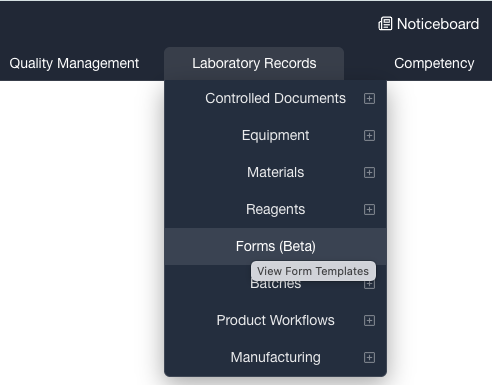
The module can be found under the Laboratory Records main menu item, in the sub-menu Forms (Beta). The page itself is headed Fillable Forms.
| Note |
Forms (Beta) is a beta module. Some features you may expect, such as printing and exporting submissions, are not available yet. See Current limitations at the end of this article. |
Before You Start
- An account manager must switch on Fillable Forms under 'Administration > Settings > System Preferences > Optional Modules'.
- Give users the permission Desktop:Show Fillable Forms Menu Item, plus the Fillable Forms permissions they need (see Permissions below). The Fillable Forms permissions only appear in the role editor once the module is switched on.
- Optional: AI Form Creation is a separate subscription module. Once it has been added to your account, a customer admin can switch it on in the AI section of Optional Modules.
If you open the page without the module or the menu permission, you will see the standard no-access message. Links in tasks and emails open the submission directly, after you have logged in.
The Forms List
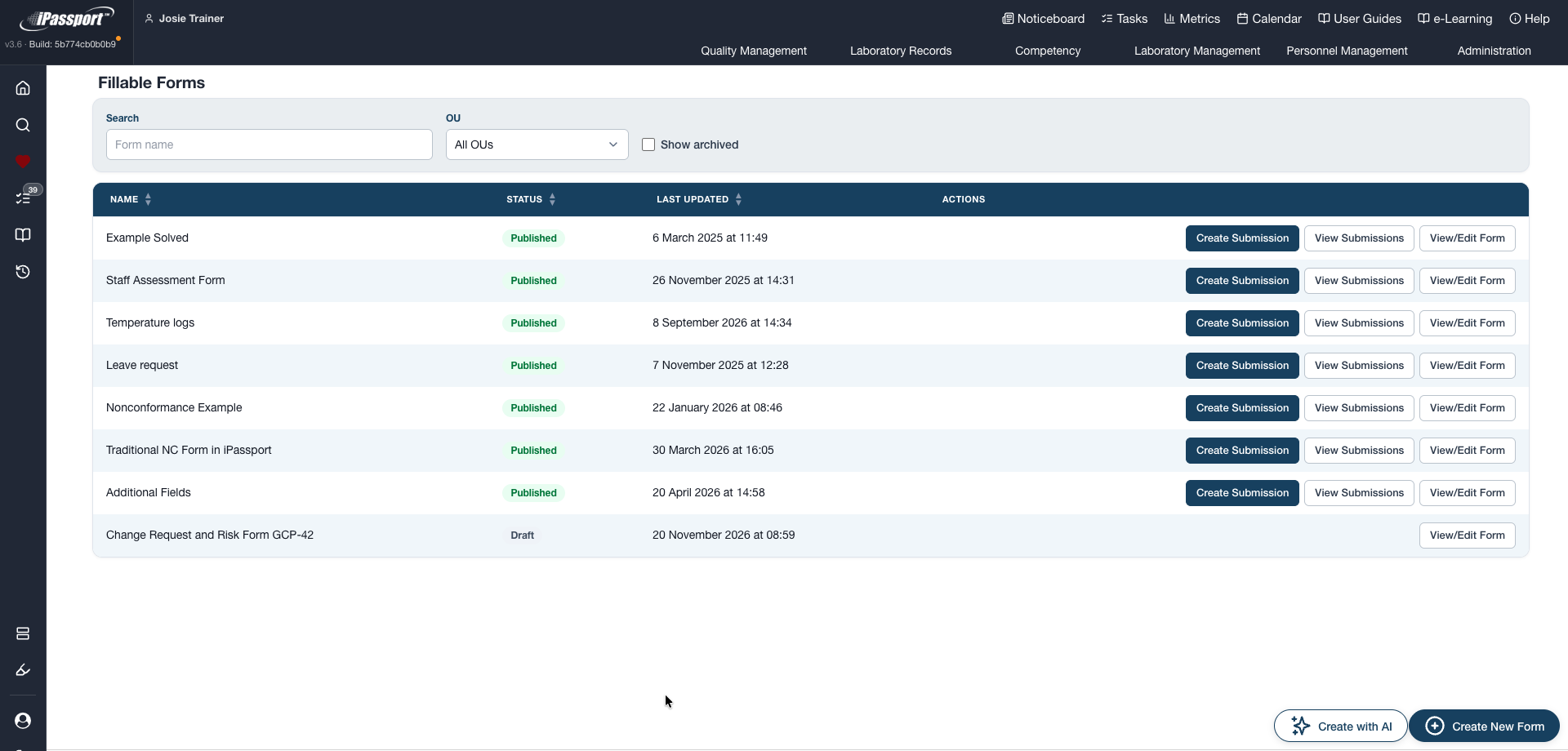
The Fillable Forms page lists every form template you can see. Click a row to open the form's current version.
Filters
- Search (Form name) narrows the list as you type.
- Facility (enterprise accounts) and OU show forms available there, including forms available in every OU.
- Show archived appears if you hold Records:View Inactive Records.
Everyone sees the Name column and the action buttons. Users who can design forms also see Status (Draft, Published or Archived) and Last Updated. Click a column heading to sort. If you cannot design forms, you will only see forms that have been published at least once.
| Button | What it does | Shown when |
| Create Submission | Starts a new submission of the form | The form is published and you have Submit Forms |
| View Submissions | Opens the form's submissions list. Reads View Own Submissions if you can only see your own | The form is published or archived |
| View/Edit Form | Opens the form template | You have Create/Edit Forms |
| Create New Form | Creates an empty draft and opens it in the designer | You have Create/Edit Forms (bottom right of the page) |
| Create with AI | Drafts a form from a Word or PDF document | You have Create/Edit Forms and AI Form Creation is switched on |
Archiving, reactivating and deleting a draft are done from the form template itself, not from the list.
Designing a Form
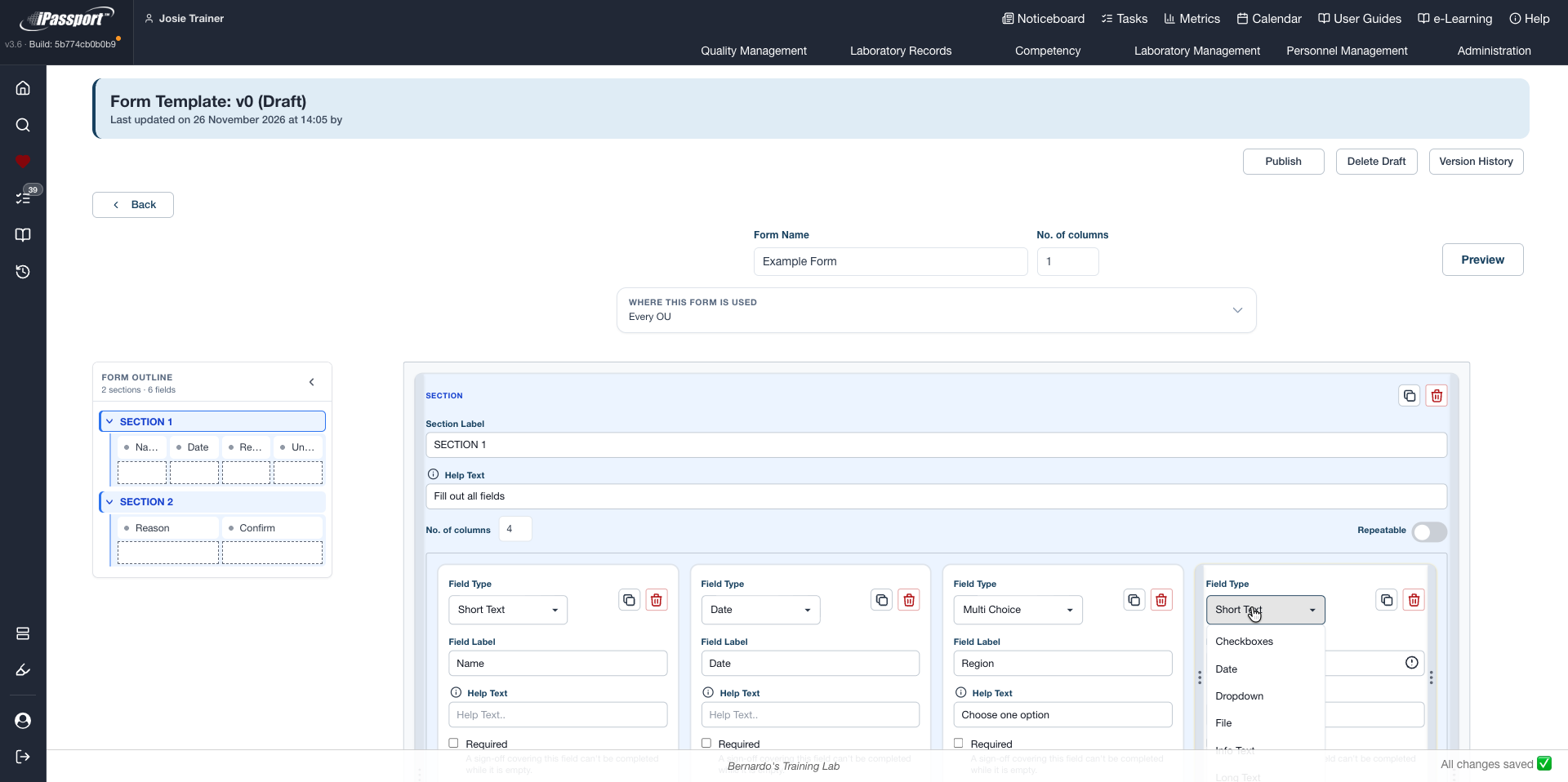
You build a form in the designer by placing fields and sections on a grid. Every change saves automatically: look for Saving... followed by All changes saved. There is no Save button. Only a draft can be edited.
Form settings
- Form Name must be filled in and must be unique in your account.
- No. of columns sets the grid width for the form, from 1 to 4.
- Where this form is used sets the OUs that can use the form. Leave every box empty to make it available in every OU. In enterprise accounts, ticking a facility covers all of its OUs, including ones added later. OU changes take effect when the draft is published.
- Preview shows the form as people will fill it in. Cancel Preview returns you to the designer.
- Show outline opens the Form outline, which counts sections and fields. Click a row to jump to that field, or move fields from there.
Adding and arranging content
Each empty cell on the grid offers Add New Field and Add New Section (Add New Subsection inside a section). A new field starts as Short Text with no label.
- Resize a field by dragging its left or right edge across columns.
- Move a field with the up and down arrows, by dragging it within or between sections, or from the outline.
- Duplicate copies a field or a whole section and adds (Duplicated) to its label.
- Delete removes a field. Deleting a section that has content asks you to confirm first and tells you how many fields and subsections will go with it.
Sections group fields. Each section has a label, help text and its own number of columns, and subsections can sit inside it. Switch on Repeatable to let people add more entries while filling in, for example a daily temperature log. Sections that contain sign-offs also set the order of work (see Signing Off).
Field types
Every field has a Field Label, which must be unique within its section. Every type except Info Text can also have Help Text, which appears with an info icon while filling in. Tick Required on an answer field to stop any sign-off that covers it from being completed while the field is empty.
| Type | What people do | Settings |
| Short Text | Type a single line, such as a name or reference | Required |
| Long Text | Type a paragraph | Required |
| Date | Pick from a calendar; dates read DD-MMM-YYYY, for example 01-Jan-2026 | Required |
| Dropdown | Choose one option from a list | Options, Required |
| Multi Choice | Choose one option from radio buttons | Options, Required |
| Checkboxes | Tick as many options as apply | Options, Required |
| File | Upload one file, up to 5 MB | Required |
| Info Text | Read formatted instructions, links and images. Nothing is collected | Content (images PNG, JPEG, GIF or WebP, up to 10 MB each) |
| Sign Off | Sign the section or form | Sign-off mode |
For option fields, Add Option adds a new option, and pressing Enter in an option adds the next one. Drag an option to reorder it. Warnings appear for empty, duplicate or missing options.
Sign-off modes
Each Sign Off field has a mode. New sign-offs start as Simple.
| Mode | What signing asks for | What is recorded |
| Simple | Nothing; one click | Signer, date and time |
| Relaxed | The signer's PIN and a reason | Signer, date, time and reason, confirmed by PIN (lightweight 21 CFR Part 11) |
| Strict | Username, password, PIN and a reason | Signer, date, time and reason, confirmed by all three (full 21 CFR Part 11) |
The same checks apply when a sign-off is removed. Anyone who can edit the submission can sign; a sign-off cannot be limited to particular people.
Create with AI
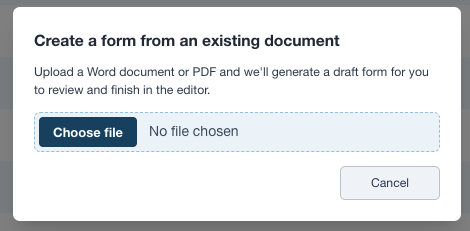
Create with AI opens Create a form from an existing document. Upload a Word (.doc, .docx) or PDF file of up to 10 MB. iPassport reads it and opens a draft form for you to review and finish. This can take up to about five minutes, and you can press Stop while it works. Your account has a daily AI usage limit, which resets at midnight UTC.
Publishing and Versions
A form has one editable draft at a time. Publishing the draft makes it the live version, and every earlier version becomes Superseded. The heading shows the form's name, version and status, for example Form Template: Daily start-up check v3 (Published).
| The form is | Buttons you see |
| Draft | Publish, Delete Draft, Version History |
| Published | Create New Submission, Edit (or Edit Existing Draft), Archive, Version History |
| Archived | Reactivate, Version History |
- Publish asks you to confirm. If the form has problems, publishing stops, a red banner appears and each problem field is highlighted.
- Edit opens the existing draft, or creates a new draft copied from the latest version.
- Delete Draft removes the draft.
- Version History lists every version with who last changed or published it, plus each archive (with its reason) and each reactivation. Click a version to open it read-only.
Submissions stay on the version they were started on. A submission from an older version shows This submission is from a superseded form version.
What stops a form being published
Amber warning icons flag these problems while you design, so you can fix them before you press Publish.
- The form name is blank or already used by another form.
- The form has no fields.
- A field or section label is blank, or two fields in the same section share a label.
- A section has no fields in it.
- Info Text has no content.
- An option field has no options, a blank option or duplicate options.
Archiving and reactivating
Archive stops new submissions and makes existing ones read-only. It needs a reason. Archived forms are hidden from the list for anyone without Records:View Inactive Records. Archiving also closes every open task for the form's submissions, and reactivating does not reopen them.
Reactivate needs Create/Edit Forms and Records:View Inactive Records. New submissions can then be started again, and the draft and submissions return to how they were.
Submissions
A submission is one filled-in copy of a published form. You become its Form Owner when you start it.
Starting a submission
Click Create Submission on the forms list, or Create New Submission on the form or its submissions list. If the form is available in more than one of your OUs, iPassport asks which OU the submission belongs to. The OU cannot be changed later.
The submissions list
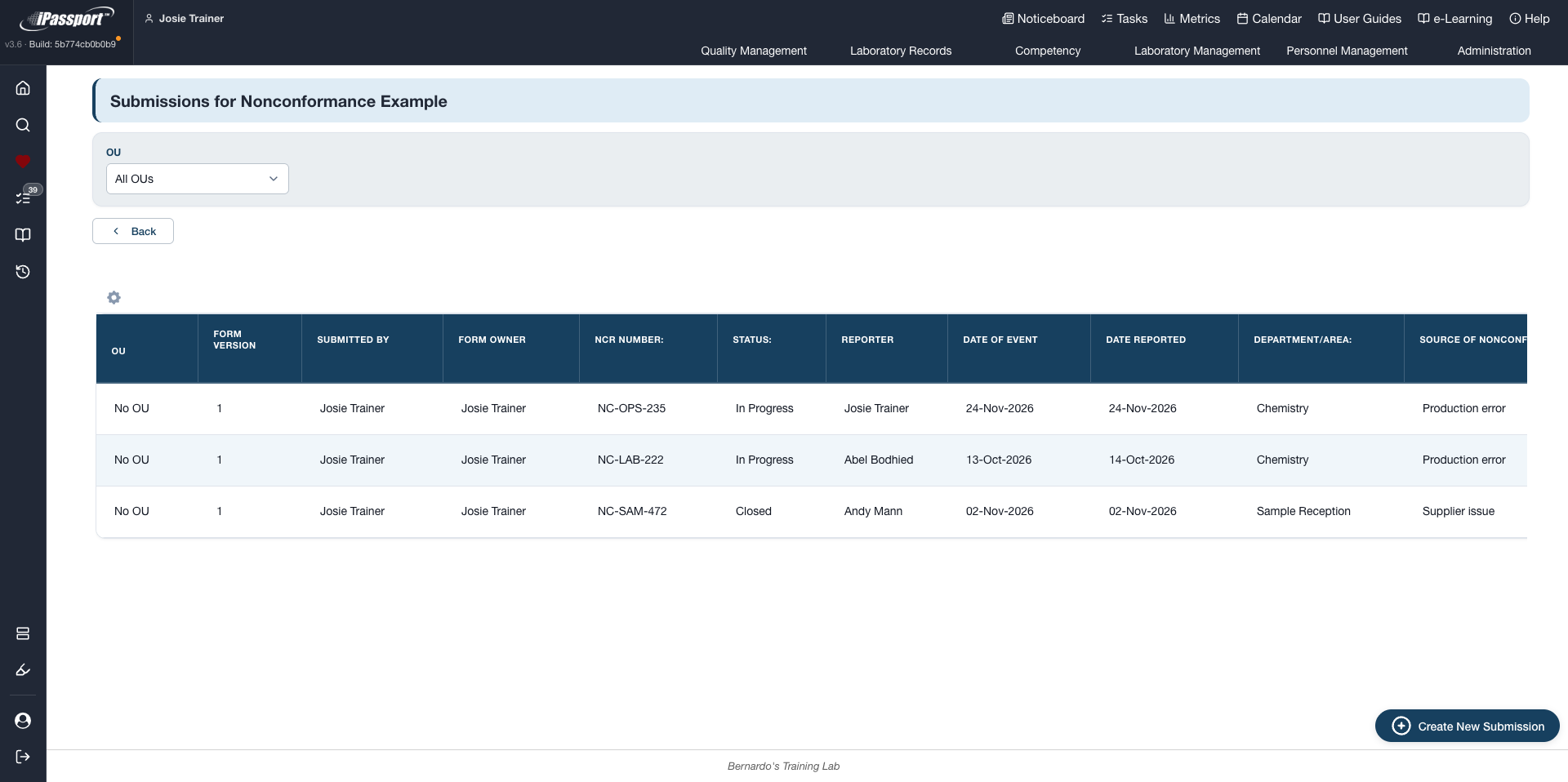
The list shows OU, Form Version, Submitted By (the person who started it), Form Owner, and then a column for each answer field. Fields inside repeating sections do not get a column. Filter by Facility and OU; No OU finds submissions made before OUs were added.
The cog icon lets you rename, hide or wrap columns. You can also drag columns to reorder them, resize them, sort them and filter by value. These column settings are kept in your browser only.
With View Submissions you see every submission in OUs where you hold the menu permission. With only Submit Forms you see your own: those you started, and those assigned to you or to a distribution list you belong to.
Filling in and submitting
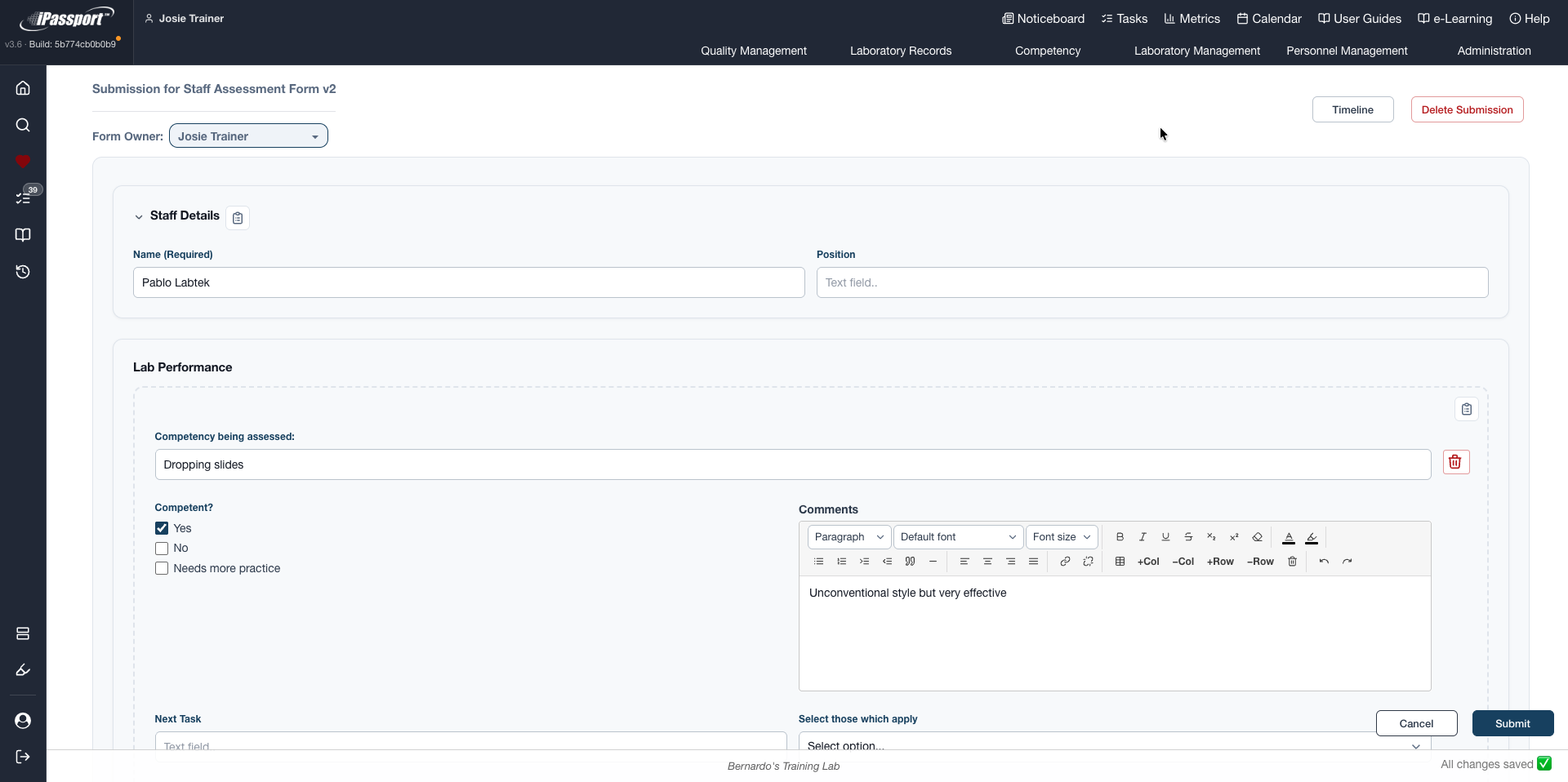
When you open a submission you can edit, your changes save as you type, but they only count once you press Submit. This includes sign-offs.
- Submit saves your changes and returns you to the submissions list.
- Cancel on a brand-new submission deletes it. On an existing one, it undoes all your unsubmitted changes.
- Required fields show (Required) after the label. They do not stop you submitting; they only stop a sign-off that covers them.
- In a repeating section, use Add another [section] to add an entry. The bin button removes an entry, unless it holds a signed sign-off.
- A File field holds one file of up to 5 MB. Choosing a new file replaces the old one. Anyone who can see the submission can download it.
If you can view but not edit, you see a Back button and the message You can view this submission but not change it. To edit, you need Submit Forms and must be the creator or one of the people it is assigned to.
History
- Timeline lists who started the submission, assignments, completed or closed tasks, and each sign-off or withdrawal, with dates and reasons. Answer changes are not shown here.
- The Section history icon on each section (and each repeating entry) shows submitted answer changes from and to, sign-offs, withdrawals, and added or removed entries, with who made them and when.
Deleting a submission
Delete Submission needs a reason and removes the submission for everyone, closing its open tasks. You can delete your own submission until something in it is signed. After that, only someone with Records:Delete Records in its OU can delete it.
Signing Off
Sign-offs lock sections and set the order of work. A submission has no overall status of its own; each section shows one, worked out from its sign-offs.
| Section label | What it means |
| (none) | Nothing in the section is signed yet, so it can be edited |
| (Locked - Sign-offs in progress) | Some sign-offs are signed. Its fields can no longer be changed |
| (Completed) | Every sign-off in the section is signed |
| (Pending) | An earlier section still has unsigned sign-offs, so this one waits, shown collapsed |
Sections without sign-offs never lock and do not hold up later sections.
Signing
- Fill in the section, including every Required field it covers. If something is missing, the sign-off button lists the empty fields; click one to jump to it.
- Click the sign-off button, which carries the field's label.
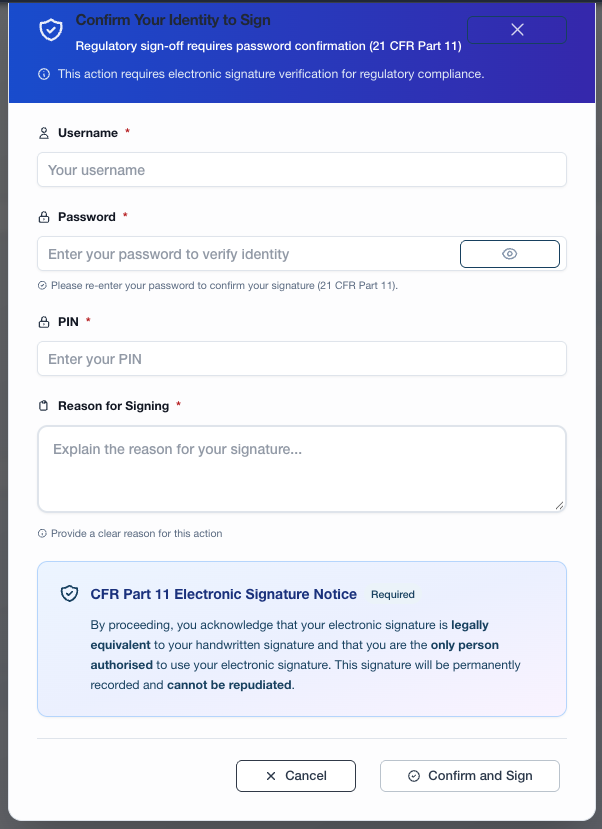
- For a Simple sign-off, that is all. For Relaxed or Strict, complete Confirm Your Identity to Sign (PIN and reason, plus username and password for Strict) and click Confirm and Sign.
- Click Submit for the sign-off to count.
The signed field then shows who signed, how it was confirmed, and how long ago. A section's sign-off also waits for any unsigned sign-offs in its subsections.
Withdrawing a sign-off
Click Remove [sign-off label]. Your own Simple sign-off is removed straight away. In every other case you give a reason, plus your PIN or credentials to match the mode, and click Remove Signature. If the sign-off was someone else's, they are emailed your reason once you submit.
A sign-off can only be withdrawn while nothing after it has been completed, so withdraw the later sign-offs first. There is no separate return action: withdrawing sign-offs is how a section is reopened.
Assigning a Submission
Assigning makes someone the submission's Form Owner and gives them a task or an email. The whole submission is assigned at once.
On the submission, the Form Owner row shows who owns it. If you can edit the submission, search for a user or distribution list there, or click Assign to me, which gives you a task straight away with the default description. If you are in the middle of editing, the change happens when you click Submit.
| Field | What it does |
| Create a task? | Ticked by default. Untick it to send an email instead of a task |
| Due Date | When the task is due. Cannot be in the past |
| Active Date | The task stays hidden from the person until this date. Leave blank to activate it straight away |
| Priority | Low (default), Medium, High or URGENT |
| Copy users into this task? | Shows CC Users, who get the usual task CC emails |
| Make this task private | Only offered when creating a task |
| Description | Defaults to Please complete the '[form]' submission |
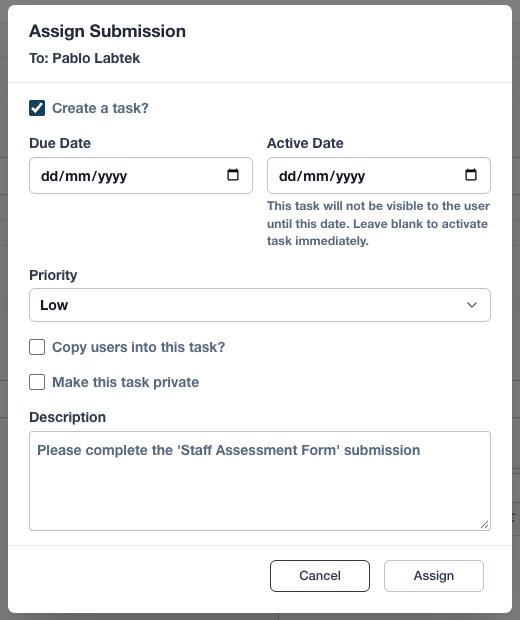
You can only assign to people with Submit Forms. For a distribution list, each active member with Submit Forms gets a task, and the dialog warns you about members who will not. Assigning closes any earlier open tasks. Without a task, recipients get the email Form submission assigned to you, with a link to the submission. The person who started the submission can still edit it after handing it on.
Complete my task and Pass to
If you have an open task for the submission, Complete my task appears on it. In the dialog you can add a Note and choose someone under Pass to. Leave Pass to empty to remain Form Owner. Choosing someone completes your task and opens Assign Submission for them. When one member of a distribution list completes the task, the other members' tasks close.
You can also complete a Form Submission task from My Tasks, but it cannot be reassigned there. To pass it on, open the submission and use Complete my task. When someone is made inactive, their Form Submission tasks close.
Permissions
The menu permission is the only Fillable Forms permission that is checked per OU. The others apply wherever you can see the form.
| Permission | Lets you |
| Desktop:Show Fillable Forms Menu Item | Open Forms (Beta). See forms limited to OUs where you hold it, and start submissions in those OUs |
| Fillable Forms:Create/Edit Forms | Create forms (including with AI), see drafts, design, publish, delete drafts and archive |
| Fillable Forms:Submit Forms | Start submissions. Fill in, sign, withdraw sign-offs and reassign submissions you started or that are assigned to you. Delete your own unsigned submissions. Be assigned a submission |
| Fillable Forms:View Submissions | See every submission in OUs where you hold the menu permission |
| Records:View Inactive Records | Show archived forms and open them and their submissions. With Create/Edit Forms, reactivate a form |
| Records:Delete Records (in the submission's OU) | Delete any submission, signed or not |
Admins and site admins are treated as holding the menu permission in every OU. Relaxed and Strict sign-offs also need your own PIN, and Strict needs your password.
Current Limitations
The following are not available in the beta yet:
- Printing, PDF, or Excel/CSV export of forms or submissions.
- Searching across submission answers. Forms do not appear in iPassport search.
- Conditional or linked fields, and validation beyond Required.
- Copying a form, or moving a submission onto a newer form version.
- An overall submission status such as Submitted or Completed, or a Return action. Work is tracked through section sign-offs.
- Assigning a single section, or limiting a sign-off to particular people.
- Starting forms from documents, equipment or other records.
- Emails other than when a submission is assigned without a task, and when someone withdraws your sign-off.
Was this article helpful?
That’s Great!
Thank you for your feedback
Sorry! We couldn't be helpful
Thank you for your feedback
Feedback sent
We appreciate your effort and will try to fix the article