Document Sharing Across OUs
Introduction
It is sometimes desirable to share a document with users who don’t normally have access to the area (Organisational Unit) where the document resides. The ability to share a document across OUs extends the power of iPassport while maintaining it’s secure streamlined structure. A user can share their access to a controlled document (including, SOPs, Policies, etc) with other specific users or with an OU.
A level of access can be set - Read, Read with Print, Edit or Authorise.
- Read allows the user(s) to view the authorised version of the document and generate a PDF preview.
- Read with Print allows the user(s) to view the authorised version and generate controlled prints of the document.
- Edit allows the user(s) to view and edit the document, create a new version, link it to other records and review it.
- Authorise allows the user(s) to do everything included in Edit, and also authorise the document.
Only the Edit and Authorise levels give access to draft versions. A document shared at Read or Read with Print level (with a user or an OU) does not give access to its drafts.
When sharing a document with individual users, they will be granted the level of permission declared but this won’t limit their access if they already have higher permissions for that type of document in the target OU. On the other hand, sharing a document with an OU does not grant anyone access on its own. Only users who already have the relevant permission for that type of document in the target OU will be able to access the shared document. The level of permission declared then limits what those users can do with it: they cannot go beyond the shared level, even if they have higher permissions in the target OU. Users in the target OU who do not have the relevant permission there will not have access to the shared document at all.
For example, if an SOP is shared with an OU at Edit level, a user who can only view authorised SOPs in that OU will be able to view the shared SOP but not edit it, and a user who has no SOP permissions in that OU will not be able to see it. To give someone access they do not already have through their permissions in the target OU, share the document with them as an individual user instead.
A document can only be shared, and its shares only give access, when sharing is enabled in the OU Settings of the OU the document belongs to. The OU the document is shared with, or the OU of the users it is shared with, does not need sharing enabled. Permissions are also required to share documents.
Permissions
There is one permission that covers all types of documents: Controlled Documents: Share Documents. It is included in the system roles, Global Editor (excluding admin) and Global Editor (excluding admin and personnel records).
OU Settings
To allow documents in a given OU to be shared (the setting must be enabled in the OU where the documents reside):
- Navigate to Administration > Settings > Organisational Unit Preferences
- Select an OU from the dropdown menu, Organisational Unit
- Click in the row for Document Control
- Tick the checkbox for the preference, Enable sharing Controlled Documents in this OU
When sharing is enabled in an OU, every document in that OU will have the record tab, Sharing available, to anyone who can open the document record. If sharing is turned off in the document's OU, the tab is not shown, and any existing shares no longer give access to the document, even for the users and OUs it was shared with.
How to Share a Document
Documents can be shared from the Controlled Documents Search page or from within the document record.
1.a. Sharing from the Search area (in bulk)
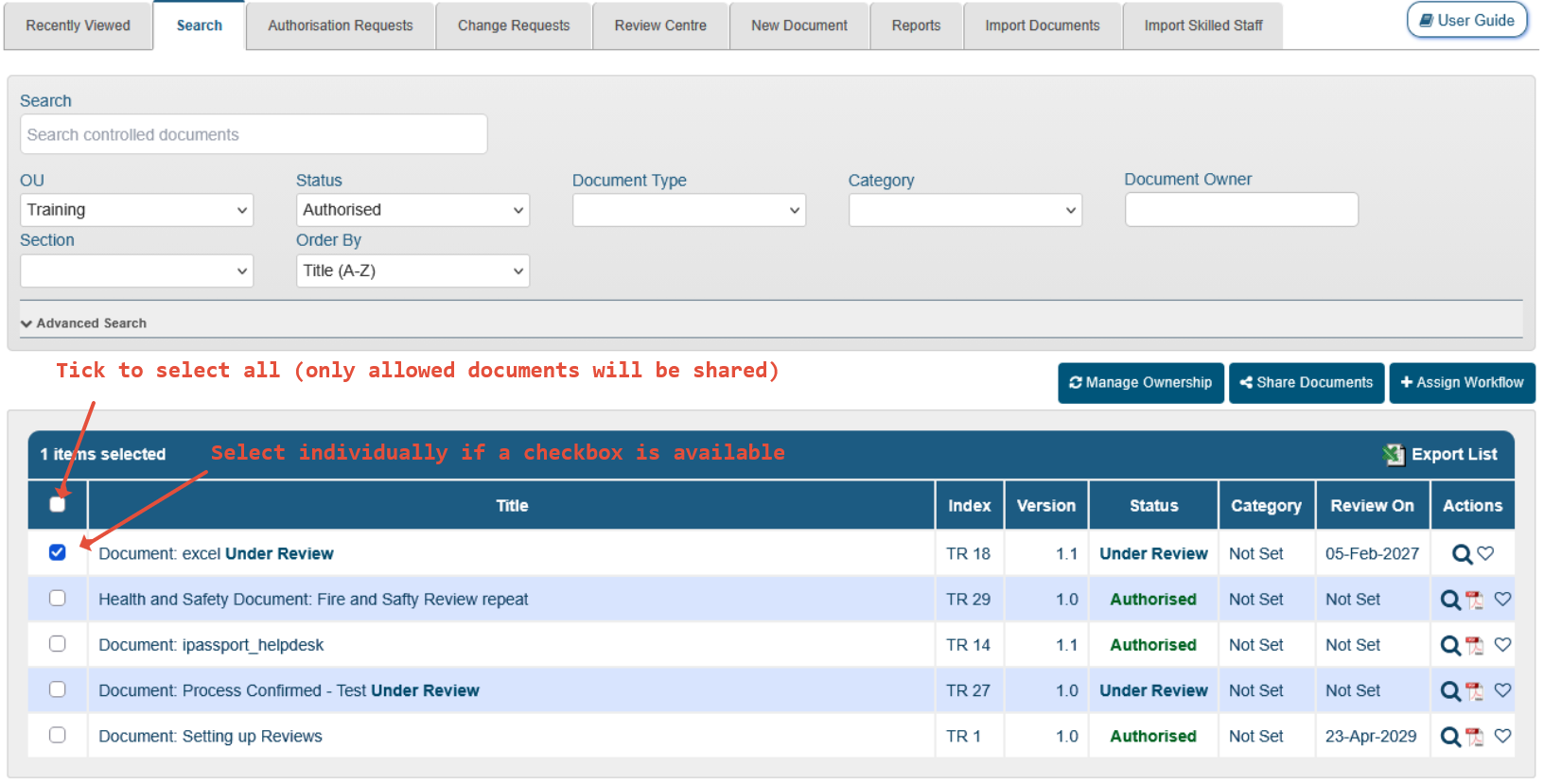
How the checkboxes appear depends on which version of the Controlled Documents search is in use. In the older search, a checkbox is displayed in the left column only for documents the user has permission to share (or to manage ownership of). In the newer search, every document in the results has a checkbox, whatever the user's permissions, and the Share Documents button only appears once at least one document has been selected. In both, the Share Documents button (above the document search results, on the right) is only visible to users with the Controlled Documents: Share Documents permission. Select the document(s) first and then click the Share Documents button.
If any of the selected documents belongs to an OU where sharing is not enabled, none of the selected documents are shared and the following warning is displayed: One or more of the selected documents cannot be shared as sharing is disabled via the documents OU preference. Remove those documents from the selection and try again.
1.b. Sharing from within a Document Record
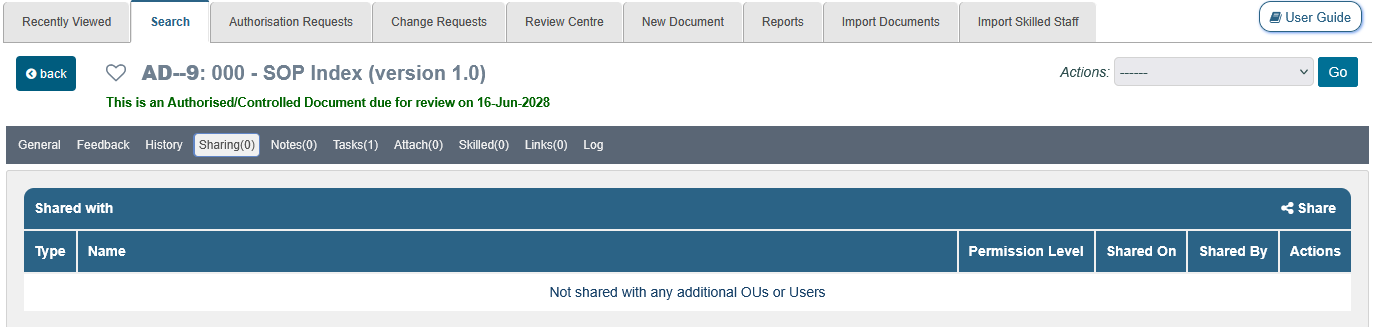
The Sharing tab is available within the document record whenever sharing is enabled in the document's OU. It is presently not possible for someone to share a document that has been shared with them, unless they already have permission to share that document in its source OU. Upon clicking the Sharing tab, the Share button becomes available on the right of the Shared with section header, only to users with permission to share that document.
2. Select who to share with and Permission Level
Once the Share Documents or Share buttons are clicked, a pop-up window appears. It initially only offers one choice - Share with.
- Select User or Organisational Unit. The window then populates with additional appropriate fields.
- Select the User(s) or OU(s) accordingly. Only active standard users are listed, and any users or OUs the document is already shared with are not offered again. The document's own OU is not offered either.
- Select a permission level
- Click Share
| Share with User: | Share with OU: |
 |  |
When multiple documents are shared, a pop-up window confirms the result. If every document was shared, it displays Successfully Shared Selected Document(s). If some could not be shared, because the user does not have the Controlled Documents: Share Documents permission in that document's OU, it lists the documents that were not shared. The documents that were shared are not listed.
Checking Sharing Status and Stop Sharing
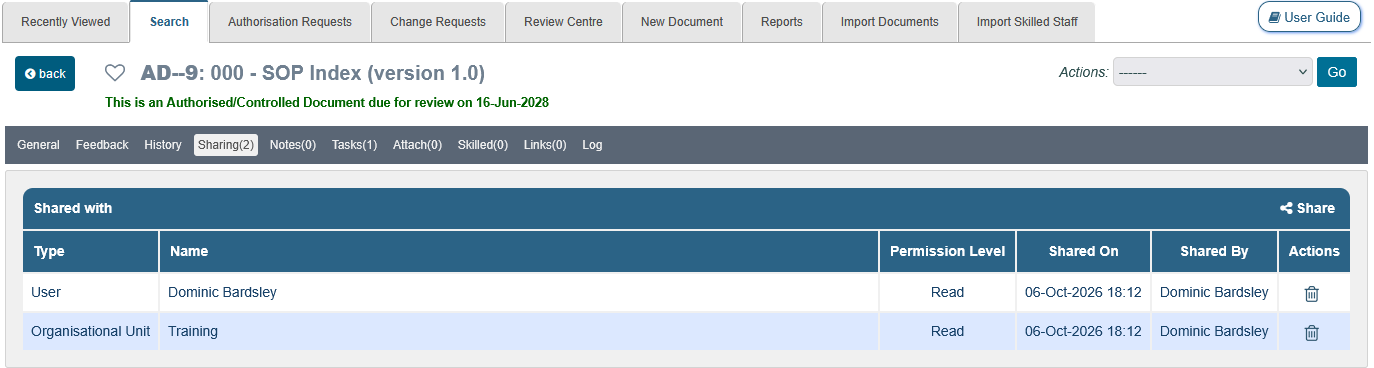
Documents that are shared will have a Sharing(x) tab available, where the “x” refers to the number of sharing instances. The users and/or OUs that the document has been shared with are listed here. A trash/bin icon under the Actions column is available to those with sharing permissions for the given document. To stop sharing the document, click the trash/bin icon. A confirmation message pops up before the item can be removed from the list.
Sharing settings are carried over when a new version of a document is created, so the new draft is shared with the same users and OUs as the version it was created from.
Was this article helpful?
That’s Great!
Thank you for your feedback
Sorry! We couldn't be helpful
Thank you for your feedback
Feedback sent
We appreciate your effort and will try to fix the article