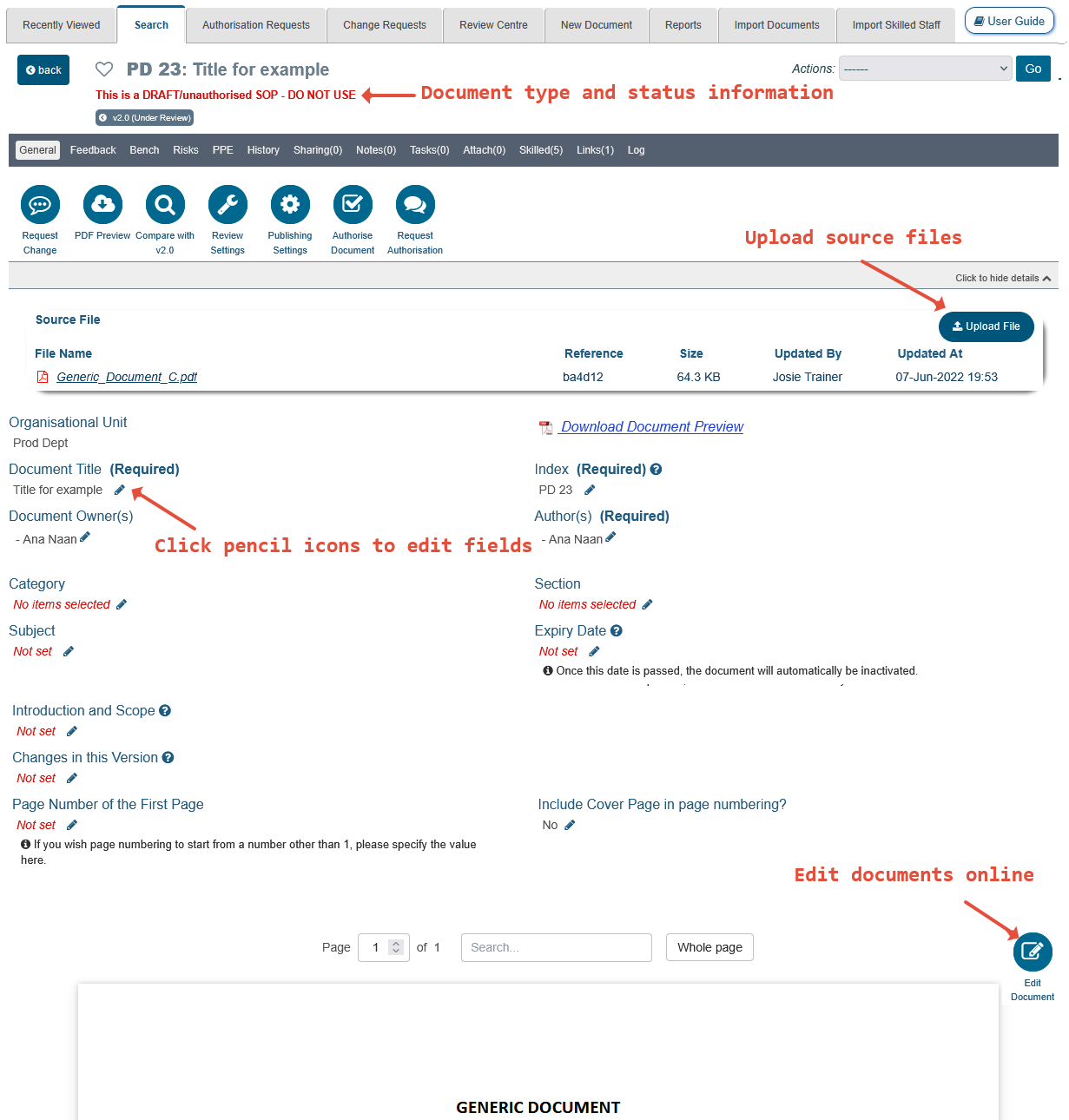
For every type of document, once the ‘Create’ button is clicked, the screen should refresh and display the new document in draft state. At this stage, the document is not released to the general users as access to draft documents is restricted by permissions. It is possible to edit any of the information within the draft document using the edit pencil icons.
Details on editing documents in draft state are provided in the user guide, Create, Edit & Publish New Versions of Documents. Some basic information is provided below:
Draft Document with Viewable Source File
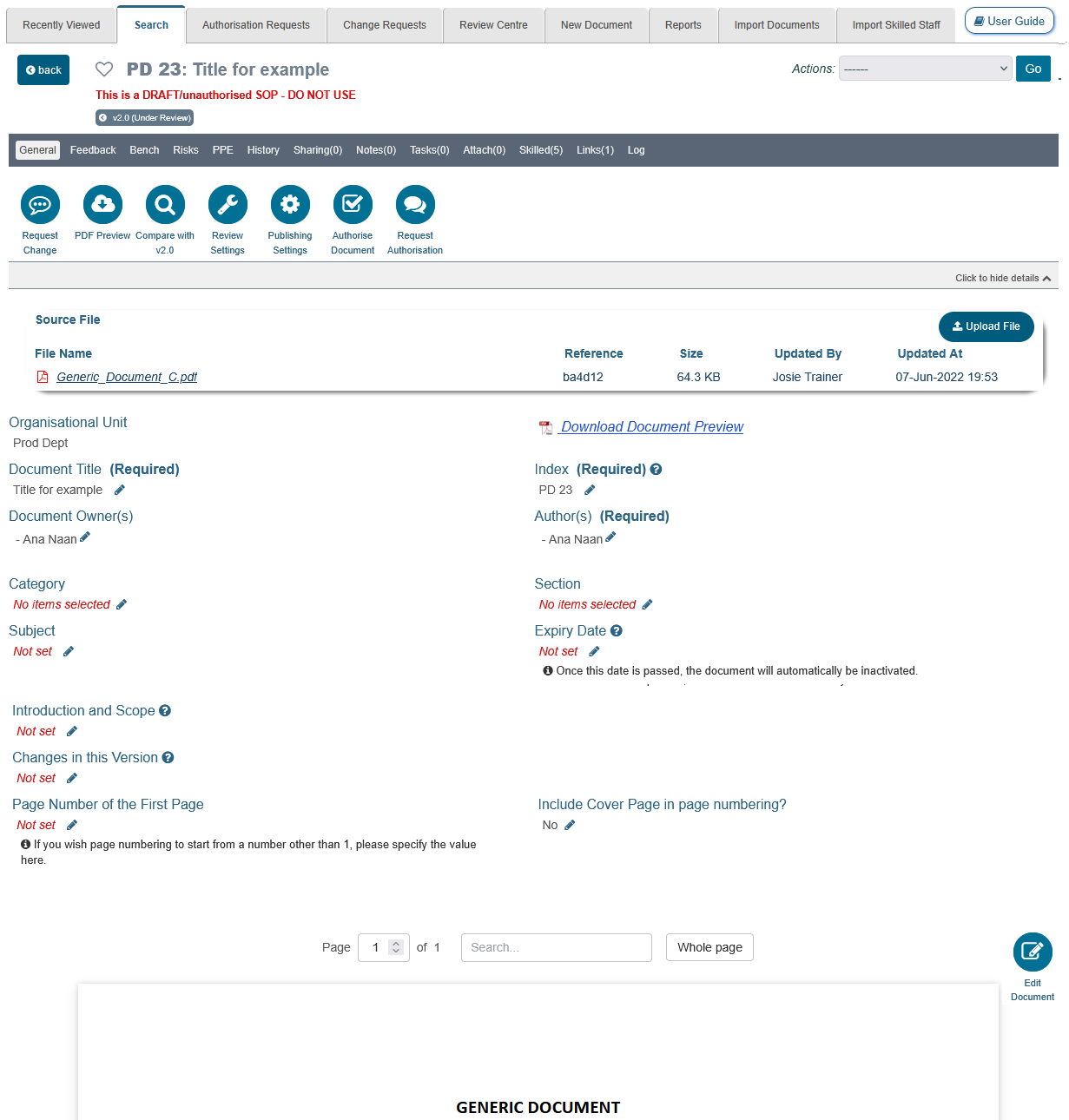
When the source file is a plain Word™ (’.doc’ or ’.docx’), RTF or PDF format file, it will be viewable at the bottom of the General tab.
For these source files, an Edit Document button may also be shown on the General tab, which allows the source file to be edited in the browser. This button is only available when online document editing is enabled for the OU, the online editor is set up for your system, and you are able to edit the document or create a new version of it.
Draft Document with Non-Viewable Source File
If other file formats are uploaded, like Excel™ (.xlsx) or Word™ files with macros (.docm), a preview won’t be available and instead of the link, Download Document Preview (which produces an uncontrolled PDF copy with watermarks), a link to download the original file is provided (e.g., Please click here to download the policy as shown in the example below). The link text uses the name of the document type, and it sits under the message, Sorry, preview is unavailable for this (followed by the document type), which lists the file formats that support Online Preview and Prints (PDFs, Word Files and Rich Text Files).
If no source file has been uploaded yet, the page instead shows the message, No procedure has been added for this (followed by the document type).
| Info |
| For experienced users of iPassport, please note that the Procedures tab in draft documents has been removed and all its information has been transferred to the General tab from version 3.6.0. Uploading updated copies of source files or viewing and retrieving previous source files which were added in the current draft version, can all be done from the General tab. |
Every uploaded source file gets assigned a reference number by the system. The reference of the current source file is shown in the Reference column of the Source File section on the General tab. When more than one source file has been uploaded for this version, the references of all uploads are displayed in the pop-up window which appears when the link, View All Uploads for this version of the document, is clicked. With a single upload, this link is not shown.
The Source File section is only shown on a draft which can be edited, to users who have the Edit or Create permission for that type of document (e.g., Documents:Edit Documents or Documents:Create Documents).

Feedback Tab
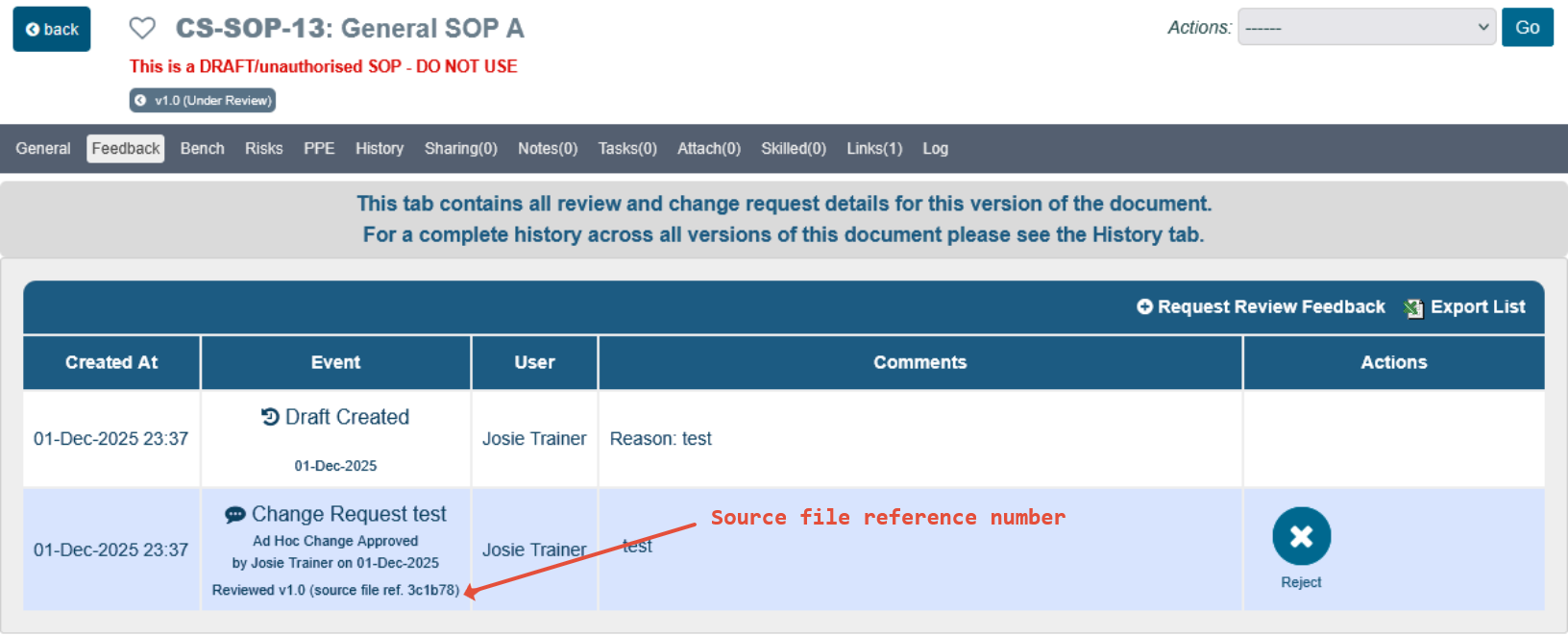
The source file reference number is also used to specify which source file was reviewed or authorised in the logs under the Feedback tab.
| Tip |
| Ad Hoc Reviews: The Feedback tab provides a link to generate a review feedback task (⊕Request Review Feedback). This link is only shown to users with the Manage Review Tasks permission for that type of document (e.g., Documents:Manage Review Tasks), and only while the document is a draft, pending authorisation or authorised. The Feedback tab is only available for document types which can be reviewed, and it may have a different name if your organisation has renamed it. The recipient of the task will be requested to read the document and declare whether it requires any changes or not. This is not considered a compulsory review but a tool to solicit feedback from other users. The review feedback is logged in the Feedback tab. |
This is the last article in this user guide.
Previous step:
The previous article covers Document Types
Was this article helpful?
That’s Great!
Thank you for your feedback
Sorry! We couldn't be helpful
Thank you for your feedback
Feedback sent
We appreciate your effort and will try to fix the article