Searching and Editing User Records
Searching User Records
The Search Users tab (which opens by default when navigating to Administration > Users) offers a search area with several filters to allow locating a particular user record.
The permission, “User Accounts:View User Accounts” is required in every OU where user records want to be accessed.
Reaching this screen in the first place also requires the permission, “Desktop:Show Users Menu Item”, which controls whether the Users entry appears under the Administration menu. Without it there is no navigation route to the Search Users tab, even where the permission above has been granted.
If a user has been assigned a ‘Home OU’, the search will default to that OU but it can be expanded to view the other Organisational Units (OUs) available to that user.
The available search filters are:
- Facility - in Enterprise Accounts only, a dropdown list of the facilities available to the user, displayed above Home OU; changing it repopulates the Home OU list with the OUs belonging to the facility selected
- Search Users - a search-as-you-type field where the first and last name can be entered, as well as the username
- Home OU - a dropdown list of OUs available to the user; if this field is left blank, all OUs on the list will be included in the search. In accounts that are not Enterprise Accounts the dropdown also offers a ‘Not Set’ option above the list of OUs, which returns only those users who have no Home OU assigned; this is the only way to isolate those users from this screen
Note This field defaults to the logged in user’s home OU, if one has been assigned to them.
Only the OUs where the user has the permission, “User Accounts:View User Accounts” will be available for searching.
The system will assign the account’s default OU to users who haven’t been assigned a home OU but this field will appear blank to them. - Filter Locked/Not locked - by selecting, Locked, this filter locates any users whose access has been blocked due to too many failed login attempts. A locked user is reported as “Locked Out” in the Current Activity column, with a separate Unlock Account button beside it; clicking that button asks for confirmation before the user is unlocked.
Note The “Locked Out” text and the Unlock Account button are only displayed to administrators holding the permission, “User Accounts:Enable/Disable” in that user’s facility. Without it, a locked user is reported as “Signed out” instead, so neither the lock nor the unlock control is visible.
Where the account sets a password cool-off period, the Locked filter only returns users locked within that period. Locks older than it clear on their own, without any administrator action, and those users stop appearing under Locked.
In accounts using two-factor authentication, the Not Locked option also excludes users who have used up their second-factor attempts.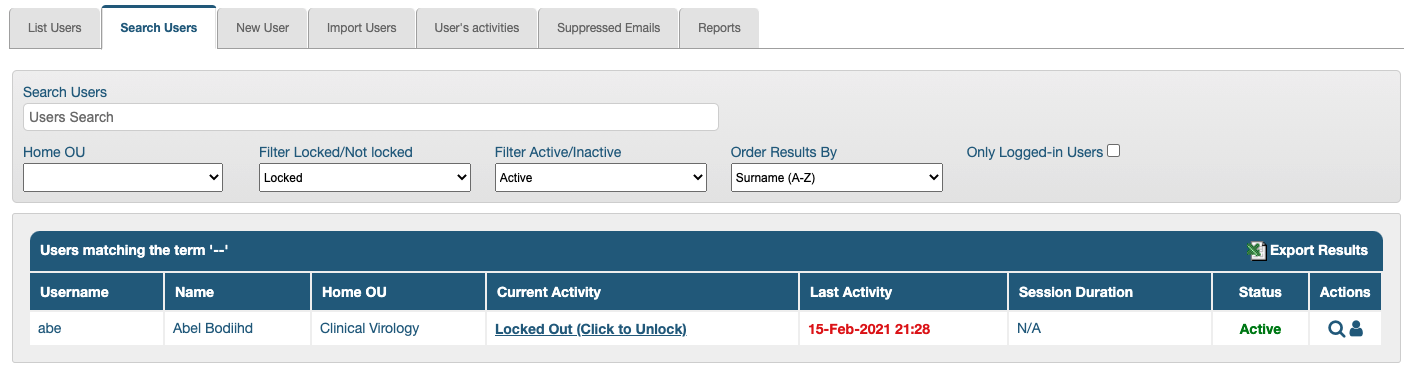
- Filter Active/Inactive - users whose record has been inactivated can be brought up by setting this field to, ‘Inactive’. This filter always applies one state or the other, so a set of results contains active users or inactive users, never both
- Order Results By - defaults to Surname (A-Z); the other options are:
- Surname (Z-A)
- Username (A-Z)
- Username (Z-A)
- Current Activity (Oldest first)
- Current Activity (Newest first)
- Last Activity (Oldest first)
- Last Activity (Newest first)
- User Added (Oldest first)
- User Added (Newest first)
- Surname (Z-A)
- Only Logged-in Users - this is a checkbox to select only currently logged in users
Exporting Search Results
Any search results can be exported by clicking the Export Results link in the upper right corner of the results area. The file is not downloaded straight away: a window opens and waits while the export is prepared in the background, then makes the file available. Clicking the link again while an export is already being prepared does not start a second one.
An export covers exactly the users the search returned, so it follows the Filter Active/Inactive setting in force at the time. Because that filter is always set to either Active or Inactive, an export contains active users or inactive users, never both, and so is not a complete list of every user in the account. An administrator who needs both will need to export twice, once with the filter set to Active and once with it set to Inactive.
The reports include:
- name information
- Home OU of the users
- whether they are active
- email address
- user group memberships
- skilled group memberships
- distribution list memberships
- whether they are currently signed in
- last activity time and date
- facility membership (only in Enterprise Accounts)
For the reason above, the ‘whether they are active’ column holds the same value for every row of any one export.
Editing General tab Information
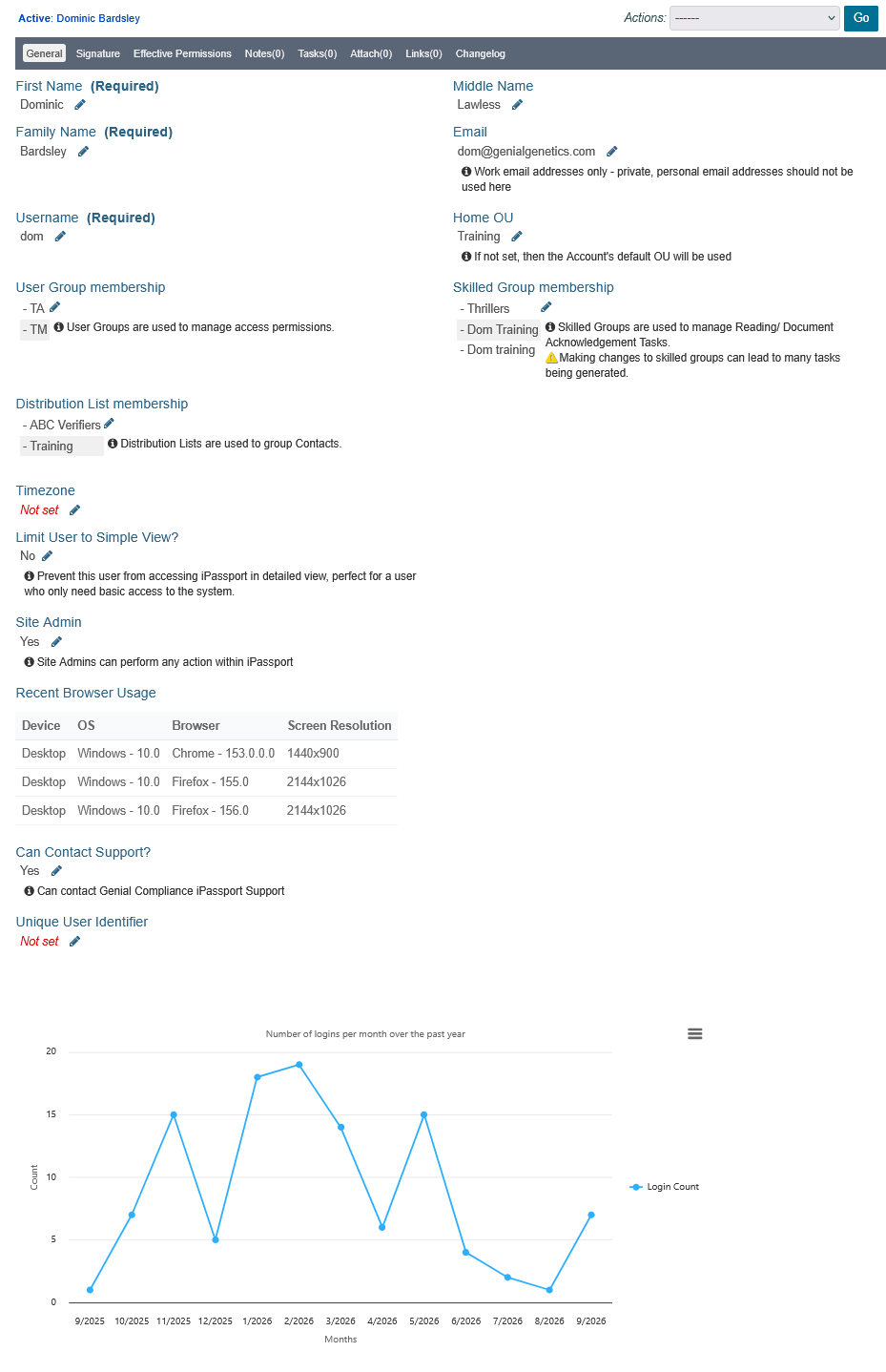
Once a user record has been created it is possible for administrators (those with Administration Editor role privileges) to edit the user record. It’s a good place to adjust the user’s level of access within the system by adjusting their user group membership. It’s also possible to adjust the user’s membership to skilled groups and distribution lists on this page.
Site Admins can also view the field, Site Admin, which they can set to Yes or No from a dropdown list to give or withdraw this special status. A read-only Recent Browser Usage table is displayed alongside it, listing the device, operating system, browser and screen resolution the user last signed in with.
On a record that has already been saved, the tab also carries a Timezone field and a Unique User Identifier field (used where the account signs in through SAML).
The bottom of the page displays a graph of monthly logins over the last year. Hovering over the graph nodes brings up a message displaying the number of logins in that period.
To edit a user record:
- Go to Administration > Users > Search Users
- Select the user’s Home OU from the dropdown menu that appears when clicking the field; if not known, select the ‘blank’ option
- Enter the user’s name into the Search Users field
Note The number of results in the list below will narrow down as you type in this field. - When the user’s name appears listed below, click anywhere in its row (or the magnifying glass) to open the record’s General tab
- Click the edit (pencil) icon next to any field to edit it
- Click the Save or Cancel button to finish editing the field
All saved changes are then recorded in the Changelog tab. Changes are always recorded, but the tab itself is only displayed to administrators holding the permission, “User Accounts:View History” in that user’s facility.
Signature tab
This tab allows a scan of the user’s signature to be uploaded, and offers controls to download or delete a signature that has already been uploaded. If present, the signature will be added in the appendices of controlled prints (for example, when the user authorises the document).
Only .jpg, .jpeg and .png signatures can be printed. Any other image format can still be uploaded, but the tab then displays a warning that the file cannot be printed in the appendix of controlled prints and asks for the image to be converted to one of those formats, so a signature can be present on the record and still never appear in a print.
| Note |
| If “Require password to upload new signature” is set in the account’s Miscellaneous Settings, then users will only be able to upload their own signature after entering their login password. With that setting enabled, the download and delete controls are hidden as well, and the upload area is not displayed at all on another user’s record, so an administrator can neither replace nor remove another user’s signature from this tab. |
Resetting a Password
The system automatically creates a password for every new user account. Users can reset their own passwords, and an administrator holding the permission, “User Accounts:Reset Passwords” can also reset a user’s password when required.
| Note |
| In accounts that sign in through single sign-on (SSO), passwords are not held in iPassport, so the Reset Password option is not offered in the Actions dropdown menu at all. |
To reset a user password:
- Go to Administration > Users > Search Users
- Ensure the Home OU filter matches the user’s Home OU or set it to ‘blank’
- Enter the user’s name (even partially) in the Search Users field and results should start filtering below
- Open the record by clicking its row when it appears in the search results
- Click the Actions field (top right of the record) and select, Reset Password from the dropdown menu

Note While a user has never signed in, the same Actions dropdown menu also offers ‘Re-send Welcome Email (resets password)’. That option resets the password and sends a fresh welcome email, and it is the better choice for a user who never received their original credentials. It is no longer offered once the user has signed in for the first time. - Click Go to open the “Reset Password” pop-up window
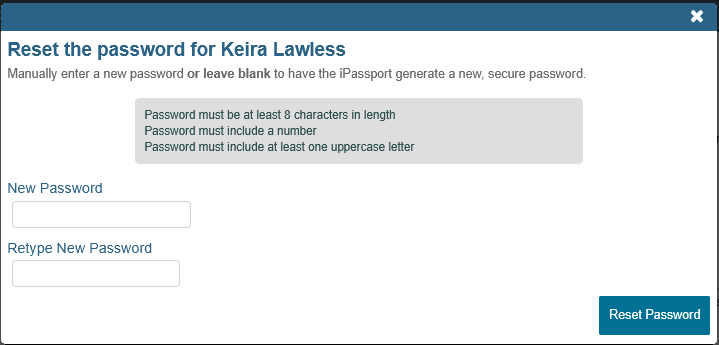
- There are two options:
- Either enter a New Password, Retype New Password and click Reset Password (in which case, the chosen password can be communicated directly to the user when appropriate). A password entered here must satisfy the account’s own password requirements, which the pop-up lists above the two fields; depending on how the account is configured these can include a minimum length, a number, a non-alphanumeric character, an uppercase letter, and not re-using a previous password. A password that does not meet them is rejected with errors in the pop-up and the reset does not happen
- Or, leave the fields empty and click the Reset Password button to allow the system to generate a secure password automatically
| Note |
| In both cases the user is required to set a new password of their own the next time they sign in, so a password chosen by an administrator and communicated directly to the user will only work once. |
A banner message is then displayed, informing that the user’s password has been reset, and iPassport sends an email to the user with their new password details.
| Note |
| The banner always reports that an email was sent, even where none could be. An email address is optional on a user record, and where the record holds no email address, or one that is not a valid address, the password is still reset but no email is sent. A password reset is not redirected to the account administrator in that situation, so nobody receives it. For those users, either enter a password at step 7 above and communicate it to the user directly, or add a valid email address to the record before resetting the password. |
The user should receive their password within 30 minutes of the reset from: noreply@ipassportqms.com
If the password has not been received, please ask the user to check their spam mailbox, and check that the user record holds a valid email address.
Set User as Read-only
In accounts that have signed up for ‘View Only Licenses’ licences (additional reduced cost basic licences), the Actions dropdown menu includes the option, ‘Set read-only’ for administrators holding the permission, “User Accounts:Set View Only”. Holding View Only licences on the account is not on its own enough for the option to be available.
When this status is enabled, the role ‘Global Viewer (excluding admin and personnel records)’ sets the upper limit of what the user can do: any permission that is not included in that role is withdrawn from them. It restricts the user’s existing permissions rather than replacing them, so a read-only user keeps only those permissions that are both included in that role and granted to them through their user group membership. A read-only user who belongs to no user groups therefore has no permissions at all, unless they are a Site Admin, whose status already grants them the permissions the role allows.
If the user holds a reserved licence, the change is refused and a message is displayed to say so, so read-only cannot be applied to them.
If circumstances change, the option ‘Unset read-only’ will be available to revert the user to the normal permission scheme based on user group membership.
Next Step:
The next article covers Inactivating/Reactivating Users
Previous Step:
The previous article covers Creating User Accounts
Was this article helpful?
That’s Great!
Thank you for your feedback
Sorry! We couldn't be helpful
Thank you for your feedback
Feedback sent
We appreciate your effort and will try to fix the article