Creating User Accounts
It’s worth reiterating that when a user record is created, the system automatically creates two other records associated with the newcomer. One is a ‘Staff Profile’, where personal information (such as leave, illness, training, skills, etc.) is collected. The other is a ‘Contact’ record, used for ‘Distribution Lists’ and when emails are sent to the user. Though the other records can be created independently, the best method to add someone who will be using the system is to create the user record first and let the system create and internally link the other two.
Creating a New User
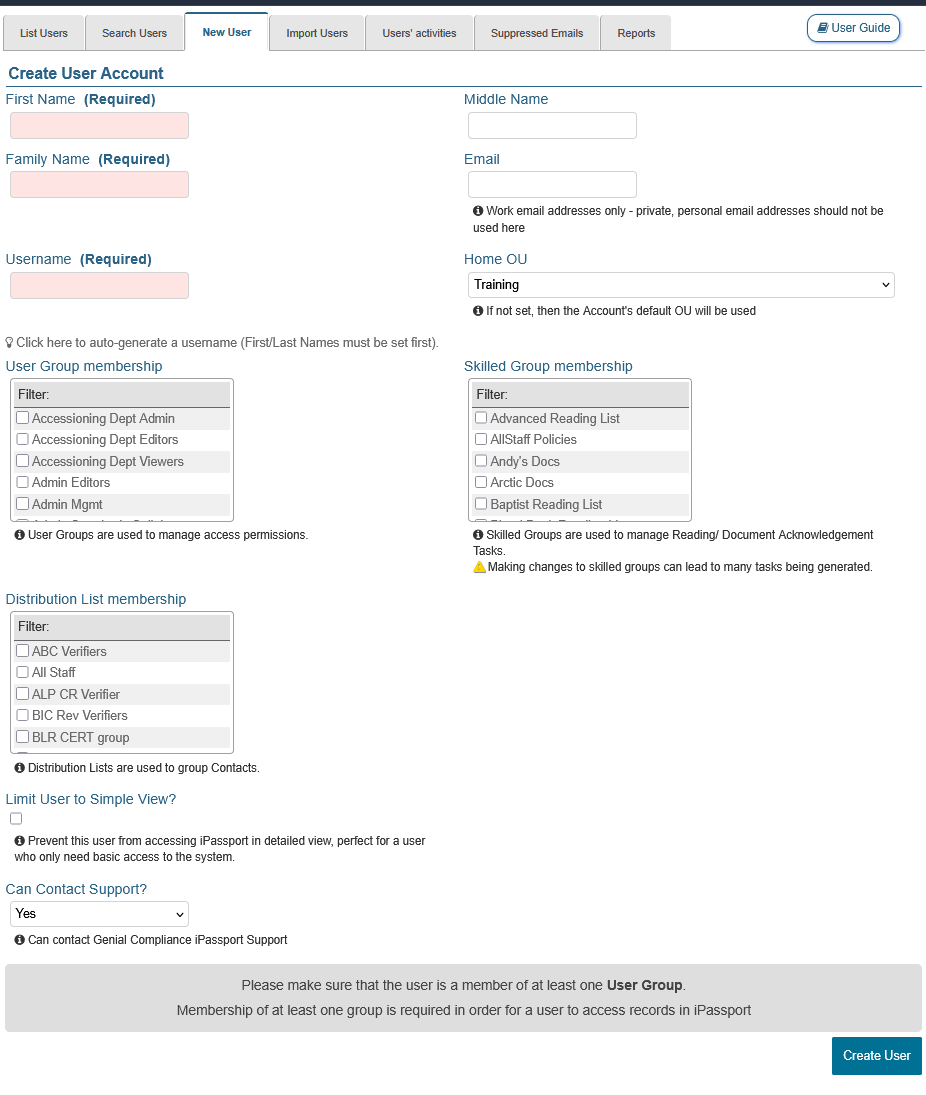
To add a new user:
- Go to Administration > Users > New User or click the [+] sign next to Users as a shortcut
Note This method allows adding only one user at a time. To add multiple users in one operation, please refer to the article, User Importer in this user guide. Please contact support@genialcompliance.com if further or special assistance is required.
Both the New User tab and the [+] shortcut require the ‘Create User Accounts’ permission; if neither appears, see the previous article in this series, Permissions for User Management, linked at the foot of this page. - Enter the First Name (this is a required field)
- Optionally enter a Middle Name
- Enter the Family Name (this is also a required field)
- Either enter a Username or click the message by the lightbulb, “Click here to auto-generate a username (First/Last Names must be set first).” (this is also a required field)
Note -Each username must be unique on the account, if the same username is entered again the system will show a warning message.
-It is possible to re-use a username that is already in use in another account as iPassport does not automatically link to multiple systems.
-Usernames have a three-character minimum and a forty-character maximum. A warning message will be displayed when ‘Create User’ is clicked if the username falls outside that range. - Enter an Email address (this is strongly advised for every user, and on some accounts it is a required field)
Note iPassport utilises emails in many areas of the system. Whether an email address is optional depends on the account preference ‘Allow Users without E-Mail address’. That preference is enabled by default, which makes the field advisory; if it has been switched off for your account, Email is marked as required and the record cannot be saved without one.
If a user record does not contain an email address, all emails for that user will be sent to the overall account administrator — provided the account preference ‘Send all unrouted mail to account administrator’ is enabled (it is by default) and the account’s own email address is a valid address belonging to an active user of that account. If either of those is not the case, those emails are discarded rather than redirected. - Select a Home OU for the new user (on enterprise accounts this is a required field for everyone other than admin users; on all other accounts it is optional and, if it is left blank, the Account’s default OU is used)
Note The Home OU allows iPassport to limit access to this user’s personal information; it doesn’t grant the user any permissions nor does it limit access to other OUs. Simply put, it doesn’t limit what the user can see; it limits who can see the user’s records. By default, the field will display the home OU of the manager creating the new user account.
The dropdown is not a free choice of every OU on the account: when creating a user it lists only the OUs in which you hold the ‘Create User Accounts’ permission, so two managers creating a user may be offered different options. - Select the required User Group(s) using the checkboxes under User group membership
Note If a user is not added to a user group then they will not have any permissions in iPassport and will only be able to log-in and log-out of the system. This is also a point to keep in mind for user support; if they do not have access to any menu items then this is the first thing to check. - Select the required Skilled Groups using the checkboxes under Skilled Group membership
Note Skilled groups are a method of assigning a number of documents to a number of staff members so they can confirm having read them. New users can be quickly assigned a reading list by making them members of the skilled groups which contain their onboarding documents. - Select the required Distribution Lists using the checkboxes under Distribution List membership
Note This section is only shown if you have permission to edit distribution lists; if you do not, it is absent from the form and this step can be skipped.
Distribution lists are widely used in iPassport to group a number of contacts in one item. There are useful applications where a team can be assigned certain duties and if the members ever change, they can be replaced in one central place, instead of having to go update all the records where the team has been appointed. Examples of this are the distribution lists made up of users responsible for verifying change requests in review processes or the teams created to oversee stock levels and reorder materials or reagents.
Distribution lists also have a unique relationship with skilled groups such that, if a distribution list has been used to populate a skilled group, whenever the distribution list is updated, it will automatically update the list of members of the skilled group. - Tick the checkbox under, Limit User to Simple View? to prevent the user from switching to Detailed View
Note This checkbox is only shown when the account preference ‘Enable Simple View’ is enabled. It is enabled by default, so on most accounts the checkbox is present.
With Simple View, the iPassport experience can be streamlined for users with little or no training. Simple View also provides an easy way to remove access to menus and areas where certain users don’t need to go. It’s also a good way to maximise screen space when using portable devices. - Click the field, Can Contact Support? to select whether the user is allowed to directly contact the iPassport support team (‘Yes’/‘No’ option)
Note When it’s preferable to lead general users to seek internal assistance instead of contacting iPassport support for help, this field can be set to, “No” ; more experienced users can be allowed to seek expert assistance from the support team by setting the field to, “Yes”. This setting toggles the visibility of the Contact iPassport Support tab in the Help area. - On accounts that use single sign-on, enter the Unique User Identifier
Note This field only appears when creating a user on an account configured for single sign-on (SSO/SAML), and its help text reads, “Used for authentication via SAML”. It holds the value that ties the new iPassport user to their account with your identity provider. Where the account’s SSO configuration uses this field as its identifier attribute, the value must also be unique within the account. If you are unsure what to enter here, check with whoever administers your identity provider. - Once all the required details have been entered to create a new User, click Create User and the the record will be saved.
New user account emails are sent from: noreply@ipassportqms.com
On accounts that use single sign-on (SSO/SAML), no welcome email is sent when a user account is created, so the new user’s details need to be passed to them another way.

| Tip |
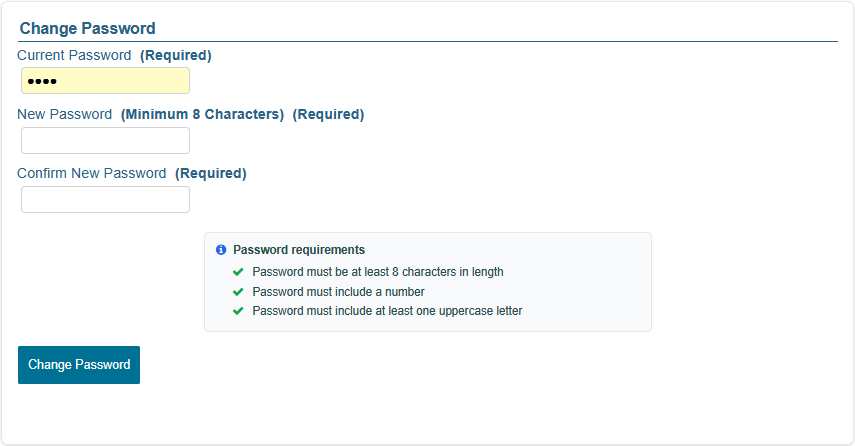
On first login users are required to change the password communicated to them through a system email or by their manager. The password renewal page will provide any password design requirements. Users on accounts that do not use single sign-on can change their own password by:
On accounts that use single sign-on (SSO/SAML), the Change Password or PIN page shows only the PIN form: passwords for those accounts are managed through the identity provider, not in iPassport.
|
Next Step:
The next article covers Searching and Editing User Records
Previous Step:
The previous article covers Permissions for User Management
Was this article helpful?
That’s Great!
Thank you for your feedback
Sorry! We couldn't be helpful
Thank you for your feedback
Feedback sent
We appreciate your effort and will try to fix the article