Viewing Assessments
Assessments are assessment templates which have been assigned to one or more members of staff. You can only view assessments if you have the appropriate permissions and only within your OU scope.
All assessments can be viewed, whether past or pending.
There are two paths to find an assessment - in the Competency area or in the Staff Profiles, by individuals:
Search in Competency
To view any assigned assessments, click Competency > Assessments > List Assessments. There are 8 available search filters to help locate any record (9 on enterprise accounts, which also have a Facility filter), in addition to the free text Search field. Two of them are hidden by default to provide more screen space below and they can be revealed by clicking the Advanced Search bar under the 6 main filters (7 on enterprise accounts). The bar toggles between v Advanced Search and ^ Hide Advanced Search.
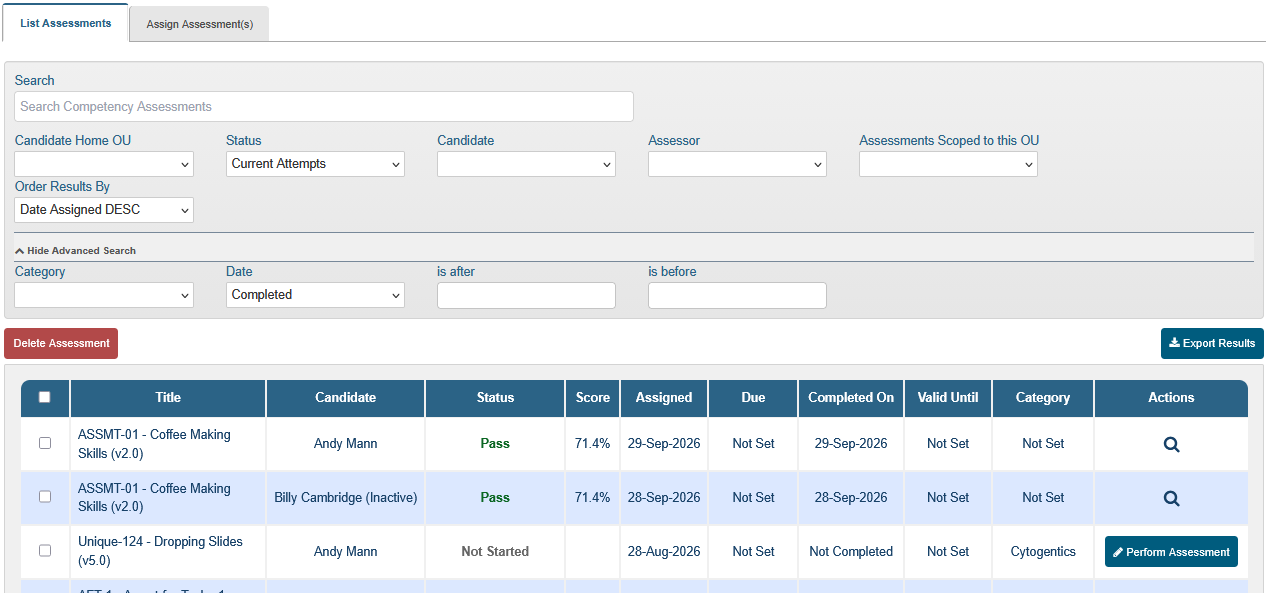
The search facility items are:
- Search field
You can type the name of the assessment in this field (the assessment template code and introduction text are also searched). Partial entries will start filtering down the search. Candidate names are not searched here; use the Candidate filter to find a candidate’s assessments.
Main filters:
- Status
Select from: - ‘Blank’ - all statuses
- Current Attempts
- Expired
- Failed
- In Progress
- Not Started
- Passed
- Previous Attempts
| Note |
| By default, all attempts are listed, including previous attempts. When a user has taken the same assessment version more than once, select Current Attempts in the Status filter to show only the latest attempt. When a test has expired because it was re-assigned or it was taken again (more than one attempt), the Status column will show whether the expired instance was passed or failed. |
- Candidate
A dropdown menu offers a list of candidates. You can jump to the candidate by typing the first few letters of their name. - Assessor
A dropdown menu offers a list of nominated assessors for assigned assessments. - Facility (enterprise accounts only)
A dropdown menu offers a list of facilities. - Candidate Home OU
Filters by the candidate’s Home OU. You can leave blank to search all OUs or select one from the list, sorted alphabetically. Only OUs that the user has permission to view assessments in, will be revealed. You can also type the first few letters to jump to the desired OU. - Assessments Scoped to this OU
A dropdown menu offers a list of OUs. Select one to show only assessments whose assessment template is scoped to that OU. - Order Results By
Select from: - Date Assigned DESC (default)
- Date Assigned ASC
- Candidate Name (A-Z)
- Candidate Name (Z-A)
- Status (A-Z)
- Status (Z-A)
Advanced Filters:
- Category
A dropdown menu offers a list of categories used in assigned assessments. - Date
A dropdown menu offers the choice of Assigned or Completed, to be used together with the following date fields.- is after
A start date can be selected from the pop up calendar.- is before
An end date can be selected from the pop up calendar to define a search range.
- is before
- is after
Search in Staff Profiles
To view a staff member’s assessments, follow these steps:
- Personnel Management > Staff Profiles > Search Staff
- Find the user, open their staff profile by clicking their row in the search results
- Click the Assessments tab to view that staff member’s assessments.
NOTES:
- If you are an eligible assessor, any pending assessments that you can perform will have a Perform Assessment button in the Actions column (or Continue Assessment if the assessment is already in progress). Assessments that you can view but not perform show a view (magnifying glass) icon instead.
- Overdue assessments are highlighted in pink.
- In both areas, assessments can be selected (by ticking the checkbox next to them, or in bulk by ticking the checkbox on the top) and deleted by clicking Delete Assessment. Deleting assessments requires the Competency: Assign Tests permission.
- Results can be exported in CSV format by clicking Export Results.
Assigning Assessments
Assessments can be assigned by staff who have the right permissions and OU scope.
There are two locations from where this can be done:
- To assign assessments from an open published assessment template:
- Select Assign Assessment from the Actions menu (this option is only shown on published templates, and only to users with the Competency: Assign Tests permission for the template’s facility; users who only have the Competency: Assign Assessments permission can use the Assign Assessment(s) tab instead)
- Click Go
- Select the Assessment Template (only one assessment template should be listed in this selection filter)

- To assign assessments from the Assign Assessment(s) tab (** MULTIPLE ASSESSMENTS CAN BE ASSIGNED **):
- Go to Competency > Assessments > Assign Assessment(s) or click the plus [+] sign by Assessments
- Locate Assessment Templates by scrolling down the list or entering (even partially) the name of the template in the filter provided; click anywhere in the row of the template to select it


- A Title is required. When one assessment template is selected, the field is pre-filled with the template’s name and version, which you can change; when multiple assessment templates are selected, the system pre-populates the field with the message “Multiple templates have been selected, the templates name will be used.” and the field cannot be edited (the templates’ names are used when the assessment assignments are notified)
- Add candidates -
- by selecting individuals from the Create Assessment for Staff Member(s) selection filter (only active staff members with a user account are listed; on enterprise accounts, only staff whose Home OU you can assign assessments in), or
- by selecting distribution lists from the Create Assessment for Distribution List(s) selection filter (on enterprise accounts, only lists for facilities you have permission for; disabled members of a list are skipped)
- Optionally, select a Due Date by clicking inside the text box and choosing a date (after today) from the calendar tool that pops up. If no due date is set, the Due column shows Not Set
- Click Create Assessments
A confirmation message is displayed to inform the user of the details selected. Assessments are created in the background, so they may not appear in the list immediately.

If an assessment has been re-assigned before it has expired (whether passed or failed), clear indication will be given in the confirmation screen.

If a candidate already has an assessment from the same template that has not been started, is in progress or is awaiting review, the system will not allow re-assigning it. Those candidates are listed under Not Assigned in the confirmation screen (“The following user(s) could not be assigned as they have already been assigned:”).

Next step:
The next article covers Performing Assessments
Previous step:
The previous article covers Reference Documents (Adv. Settings)
Was this article helpful?
That’s Great!
Thank you for your feedback
Sorry! We couldn't be helpful
Thank you for your feedback
Feedback sent
We appreciate your effort and will try to fix the article