Creating a New Version
New versions of documents can only be created from authorised versions. They can be created at any time but are usually the result of having undergone a review in which one or more change requests were approved. However, it is also possible to create new versions of documents which have no review settings.
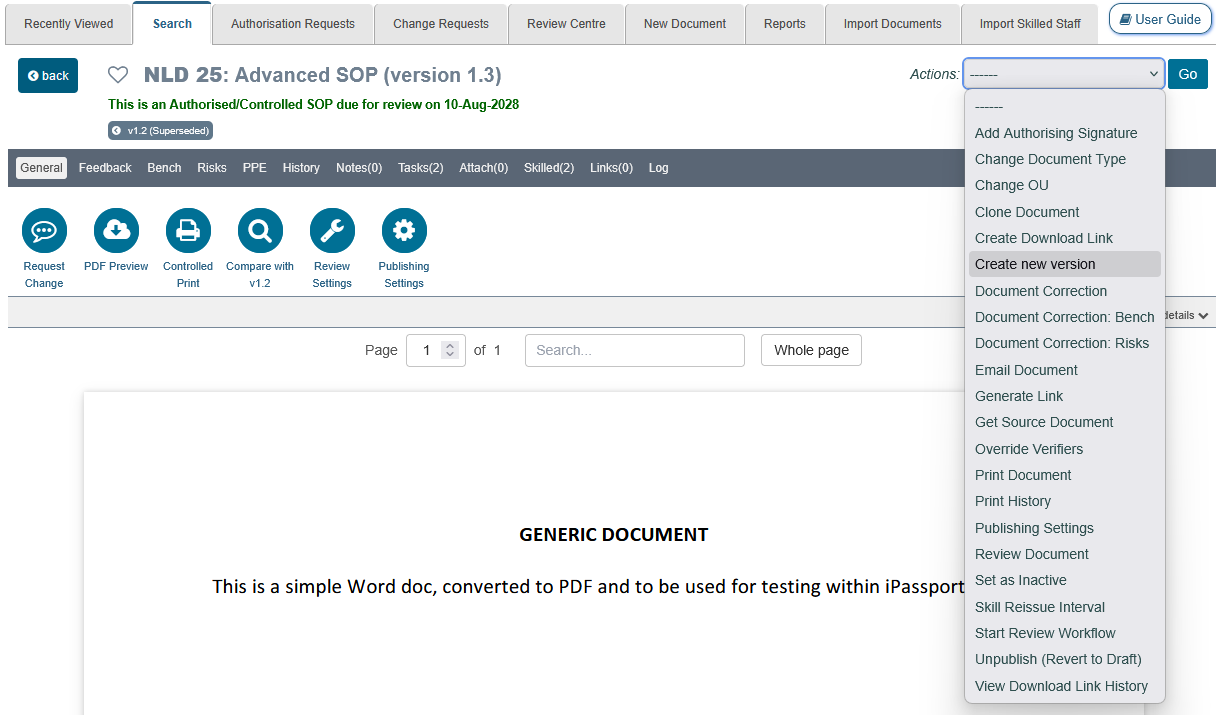
To create a new version of an authorised document:
- Open the latest authorised version of the document in question
- Click the Actions field to the right of the document’s title
- Select the option, Create New Version and click Go
- In the pop-up window which appears, a comment can be entered in the field, “Please enter the reason for the new version”
- Click Create New Version
The pop-up window may also list users who have been removed from the document’s skilled group; they will not be issued skilled tasks on the new version. When the new version is created, any approved or verified change requests are automatically recorded in Changes in this version on the new draft.
Only one draft version of a document can exist at a time. If a draft new version already exists, Create New Version is not offered in the Actions field, and the existing draft must be deleted before another new version can be created.
When a document review workflow has been followed and change requests have been approved, the system will prompt the creation of a new version. The review completion box in the workflow will display a ‘Create New Version’ button as the next logical step to follow. This button is only shown to users who have both the Create New Versions permission and the Create permission for that type of document (e.g., Documents:Create New Versions and Documents:Create Documents). Other users instead see a message saying that the document is waiting for someone with the Create permission for that type of document (e.g., Documents:Create Documents) to create a new draft so approved changes can be implemented.
The review completion box also displays the ‘Create New Version’ button, with the message, This version of the document was reviewed the maximum allowed number of times. Create a new version to complete the review., when the version has reached the maximum number of reviews allowed for that type of document, whether or not any change requests were raised.

| Note |
When a new version is created, if no change requests have been raised and a review workflow reaches the review approval step, the approval task will be invalidated and will only return if the draft is deleted. |
Editing a Draft
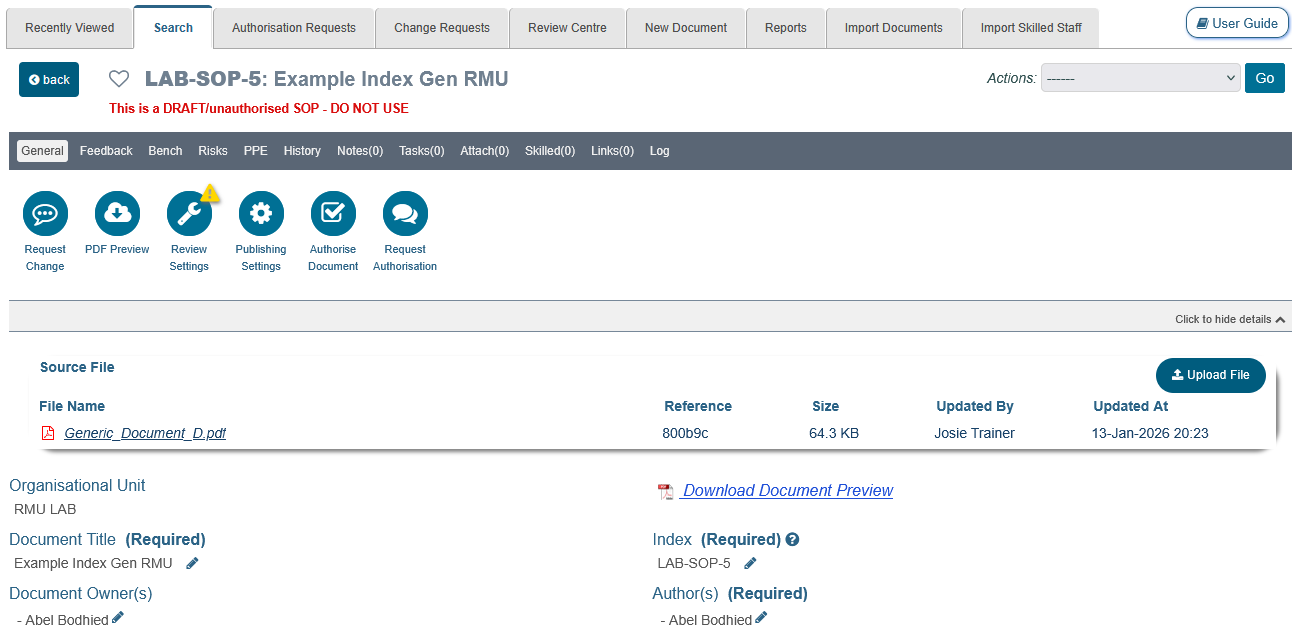
A new draft version will start with the source file which was last published (the version currently under review). From version 3.6.0, all source files carry a 6 character randomly generated reference code. It allows identifying which source file is being referred to in a review feedback task or a change request.
The document can be updated by editing it online or by uploading new source files. Online editing (the Edit Document button) is only offered on an active draft which has a PDF preview, to users with the Edit or Create New Versions permission for that type of document. It also requires the OU preference, Enable online document editing (enabled by default and described in Part 2), and the online editor being set up for your system. Most parameters can also be edited while the document is in draft state.
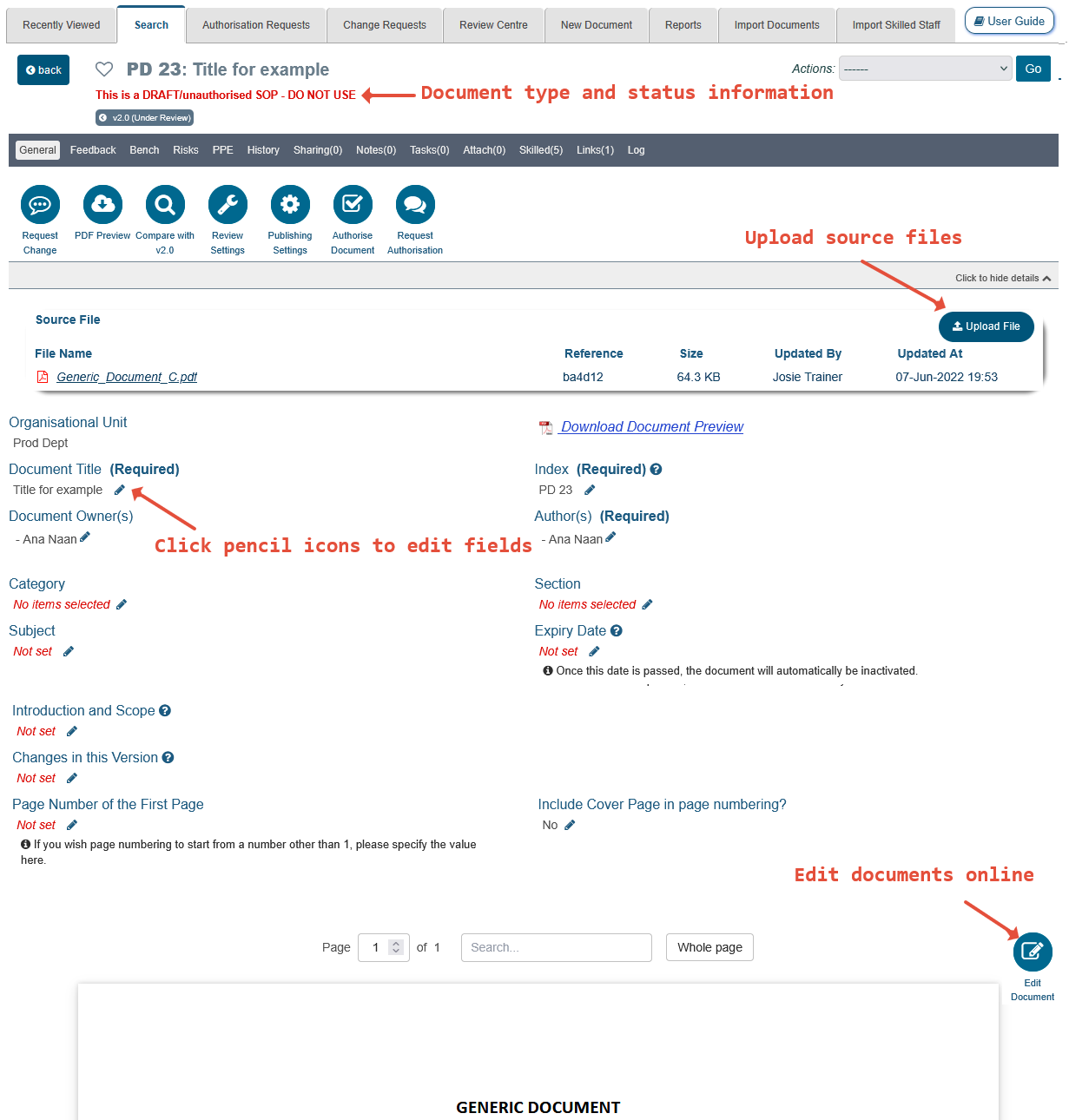
Every source file uploaded (as a new edition of the draft) will carry its own reference code. In the same manner, when the online editor is used to make changes to the source file, these are saved as a separate source file once the document is checked in. Saving more than once during the same editing session replaces the file saved earlier in that session, rather than adding a new source file each time. The saved source file will have a new reference code and it will be in Word™ (.docx) format. All source files added can be retrieved from the ‘Source File’ section in the General tab of draft documents.
Clicking the link, ‘View all uploads for this version of the document’, brings up a pop-up window which lists all uploads and saved versions of online edits. This link is only available when more than one source file exists; if there is only one, it can be downloaded by clicking its title under, File Name in the Source File section.

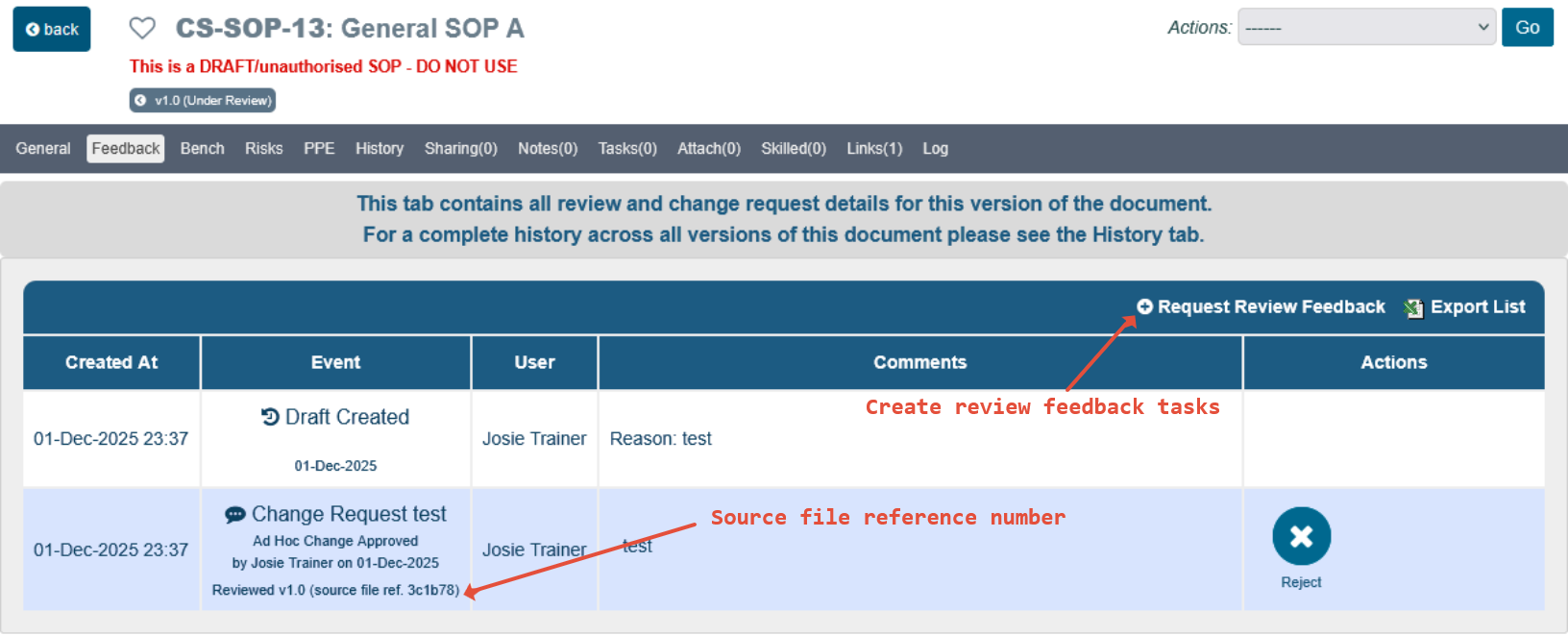
Any change requests raised will mention the source file reference so that they can be linked to the appropriate stage of the update process. The Feedback tab provides this information and also, a button to ’⊕ Request Review Feedback’, independent of any ongoing review workflow. This button is only shown to users with the Manage Review Tasks permission for that type of document (e.g., Documents:Manage Review Tasks), and only while the document is a draft, pending authorisation or authorised.
Reviewing a Draft
It is also possible to perform a review workflow within a draft document to seek consensus on the changes made. It will behave in the same way as a review workflow run on an authorised version but it will not include the approval step (if the workflow has one). The approval step is replaced with the publishing process.
During a review cycle, the button, Restart Review Cycle is available unless change requests have been submitted. When a change request is raised, the button will disappear until the change request is rejected or it is approved and a new version is created. Once a new version is created during a review cycle, the under-review version will display the Restart Review Cycle button again. Restarting a review cycle requires the Schedule Reviews permission for that type of document (e.g., Documents:Schedule Reviews), and a confirmation pop-up is shown before the cycle is restarted. When this button is clicked, the system will be aware of the existence of a new version. The new review cycle will appear in the draft version; its tasks and review feedback will display in the draft version and the review feedback tasks will refer to the source files in the draft.
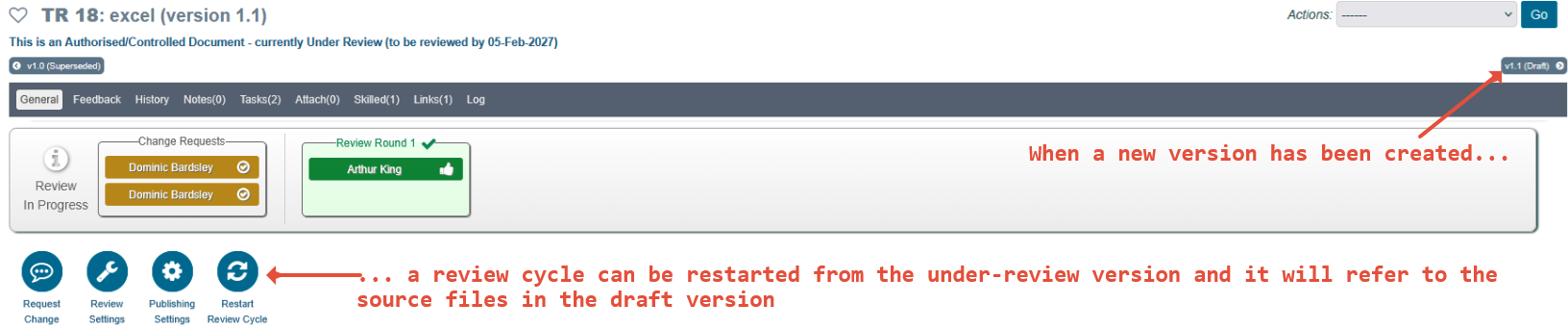
Once a workflow has been started in the draft version, it can be restarted there if it becomes necessary to have more than one iteration.
Next Step:
The next article covers Configuring Document Publishing Workflows
Previous Step:
The previous article covers Permissions & Settings to Create, Edit & Publish New Versions of Documents
Was this article helpful?
That’s Great!
Thank you for your feedback
Sorry! We couldn't be helpful
Thank you for your feedback
Feedback sent
We appreciate your effort and will try to fix the article