Creating Distribution Lists
Creating distribution lists is very simple. They are not confined to any organisational unit (OU) so they can be accessed from any record, except if they are private or if they are set to be used for reviews or review verifications. They can be made private if applicable but this will interfere with certain uses. For example, private distribution lists can’t be used for document reviewers and review verifiers.
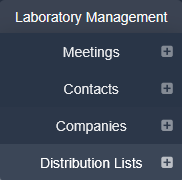
To create a distribution list:
- Go to Laboratory Management > Distribution Lists > New Distribution List (the plus (+) sign next to the menu item is a shortcut to the New Distribution List tab)
- In enterprise accounts, if you can create distribution lists in more than one facility, select the facility in the Select Facility field; this is a required field and the list will be available within that facility
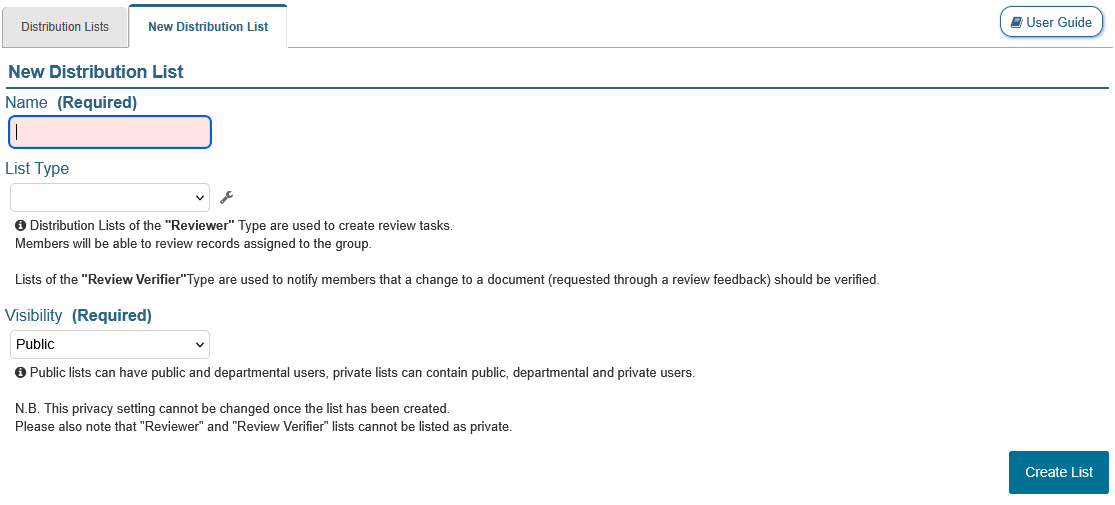
- Enter a Name for the distribution list; this is a required field and the name must be unique
- Select a List Type from the dropdown menu displayed by clicking the field (managing types is described below); this field can be left blank
- The Visibility defaults to, Public; the only option in the dropdown list is to make the list Private
Note NOTES: - Public lists allow adding contacts who are iPassport users, as well as external contacts.
- Private lists also allow adding iPassport users and external contacts, plus contacts who are set as private.
- This setting cannot be modified once the distribution list is created.
- Click Create List to save and open the new record
Once created, users with permission to edit distribution lists can edit the details of an active list by clicking the pencil icons by each field. Inactive distribution lists cannot be edited.

Adding Contacts to Distribution Lists
The next step is to add people to the list:
- Click the Members tab
- Click (+)Add Member
- Start entering the name of a contact in the Search field on the Add New Member pop-up window; the Staff Home OU dropdown next to it can be used to narrow the results
Note NOTES: - Contacts can be non-users of the system, like contractors or suppliers.
- When new users are created in the system, a ‘Contact’ record is automatically generated for them and they’ll be available for selection in this step.
- Only private distribution lists allow adding private contacts, and only private contacts you created or own can be added.
- Inactive users cannot be added to distribution lists, unless the account setting Show Inactive Users in lists is enabled.
- If the distribution list has been added to any Skilled Groups, the Add New Member pop-up window shows a warning listing them: adding a user to the list will skill that user on all documents within those Skilled Groups.
- When the name of the desired person appears listed below, click the plus sign (+) in the Actions column to add it
- Continue adding people in the same way and when finished, click the “X” in the top right corner of the pop-up window to close and return to the Members tab

The new additions should appear in the members list.
Adding New Users to Distribution Lists
It is possible to add new users to distribution lists when the user record is being created. The New User tab includes a Distribution List membership field with a search filter to find and select distribution lists where the new user can be added. The same field is also available on existing user records. It is only shown to users with permission to edit distribution lists, and inactive lists are shown with (Inactive) after their name.
Removing contacts from Distribution Lists
Contacts can be removed from distribution lists by clicking the trash/bin icon in the Actions column of the Members tab list and confirming the removal. The icon is only shown to users with permission to edit distribution lists, and only while the list is active.
If the list has been added to any Skilled Groups, removing a user opens a Remove Member pop-up window instead. It warns that the user will also be removed from those Skilled Groups (unless they belong to another distribution list that is linked to the same Skilled Group). Click Confirm to remove them, or Cancel to keep them.
Managing Distribution List Types
Two distribution list types are supplied with the system and can’t be edited -
- Reviewer - with this type set, the list becomes available in the Distribution List search filter of the ‘Request ReviewFeedback’ pop-up window (found in Documents’ Reviews tab) and the Schedule a new review pop-up window (found in Internal Audits’ and Non-Compliances’ Reviews tab)
- Review Verifier - when the verification step is enabled in an OU, dedicated distribution lists can be set to this type and used in the Review Feedback section of the ‘Organisational Unit Preferences’ for that OU
Additional distribution list types can be created and information about this can be found in the article Managing Configurable Look-up Lists.
Next Step:
The next article covers Searching and Managing Distribution Lists
Previous Step:
The previous article covers Permissions for Distribution Lists
Was this article helpful?
That’s Great!
Thank you for your feedback
Sorry! We couldn't be helpful
Thank you for your feedback
Feedback sent
We appreciate your effort and will try to fix the article