Introduction
Users can request changes to a document at any time, unless the document has been superseded or disabled. No special permissions are required other than ‘read’ access to the document. iPassport ensures that the appropriate people are notified and the request goes through an approval process. Changes can be approved immediately, in which case a new draft version of the document should be created to incorporate the changes. Minor changes, which do not need to be actioned right away, can be approved for a future version of the document. This allows small changes to be ‘parked’ until the next time a draft version of the document is created.
It is also possible create a Review Feedback task, asking a user to inspect the document and state if any changes are necessary.
Also, document review workflows will normally include one or more ‘reviewers’ (collaborators) who will be issued ‘review feedback’ tasks to cast their opinion on a given document at the time it’s being reviewed.
A user can request one or multiple changes to the document at once. There is no limit on how many changes can be requested and each request will be individually approved or rejected.
A Change Requests overview tab is available to search change requests and gather change requests for all documents in one place.
Ad-hoc change requests
If a user identifies a mistake or area for improvement in a document they can submit a change request by clicking the Request Change button on the document’s General tab.
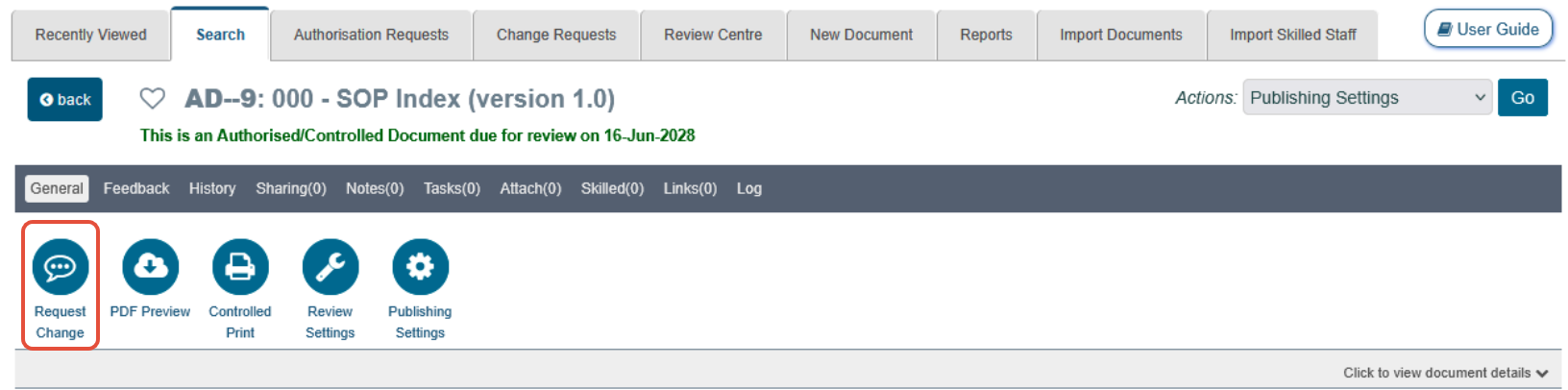
Clicking the Request Change button will open the Request Change pop-up window. To submit a single change simply enter the details into the Change Request #1 field then click Submit.

To submit multiple change requests click the Request Another Change button for each of the changes to be submitted. Clicking Request Another Change opens up a new text area allowing additional changes to be entered.

| Note |
The reason for submitting each change request separately is to allow each request to be processed individually. Otherwise, if several change requests are submitted together as one item, there is no way to clearly mark some as approved and some as rejected. |
Any user having access to the document can request a change at any time. No additional permissions are required. The Request Change button is not shown when the document has been superseded or disabled, or when the document type is not peer-reviewable.
Changes From Review Feedback
Changes can be requested when a user completes a Review Feedback task within iPassport.
| Note |
Review Feedback tasks can be generated by users in the Feedback tab of any document or, they can be generated by the system when a review workflow is started. |
If, after examining a document, a user decides that changes are needed they can click on the Request Changes button when completing their task.
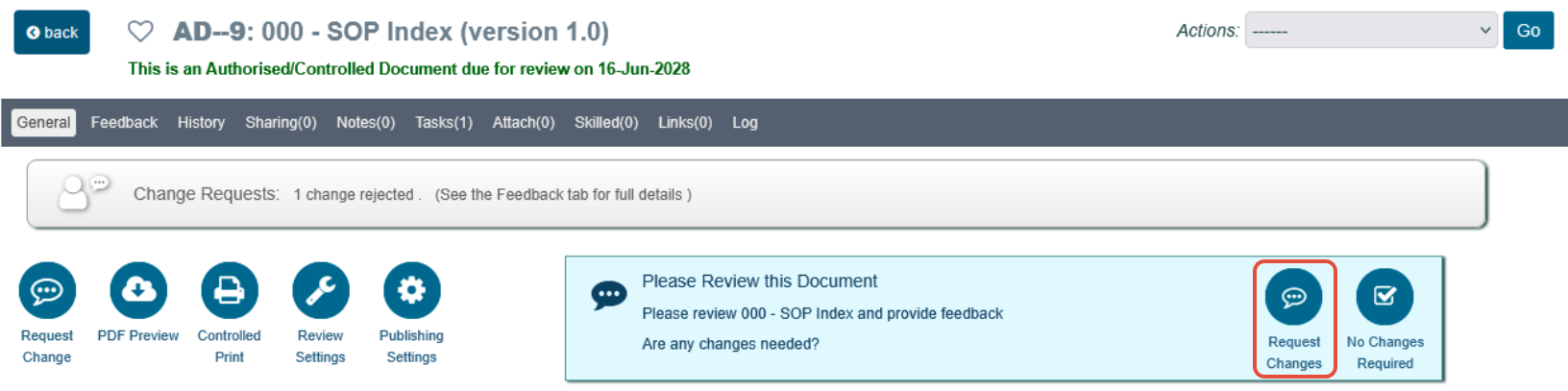
This will open a pop-up window where the user can describe whatever changes they think are necessary. As above, multiple changes can be added by clicking the Request Another Change button.
Approving and Rejecting Change Requests
When a change is requested, Document Owners and members of the document’s ‘Notifications List’ will be notified by email (please refer to the section Editing Review Workflows for details about review notification lists). Only document owners will be tasked with reviewing the requested change. The task will appear in the user’s ‘My Tasks’ sidebar and also in the Tasks area of iPassport.
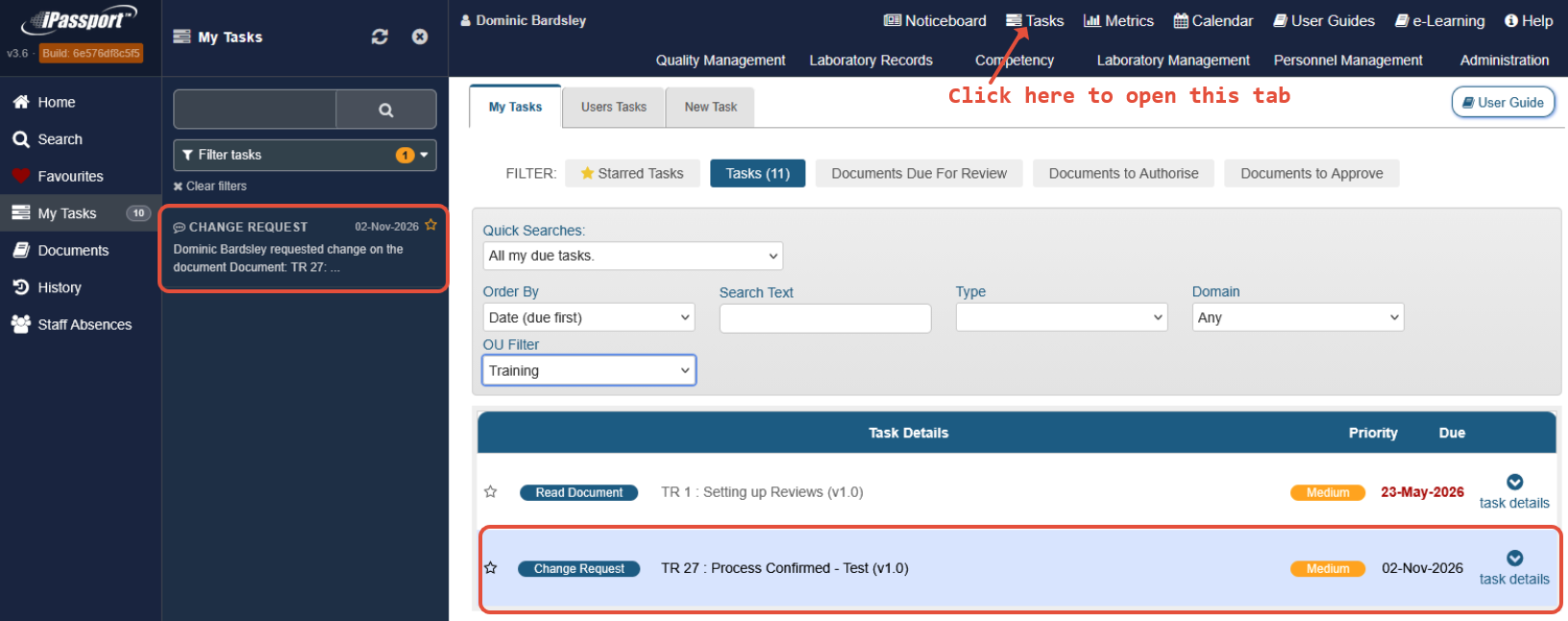
If the document has more than one owner all owners will receive a task and will be asked to process the change request. However, only one person can actually review the request. When any one of the users approves or rejects the change request, the system will clean up any tasks sent to other document owners by invalidating them.
For more information about change requests in a review cycle, please refer to the user guide, Document Reviews.
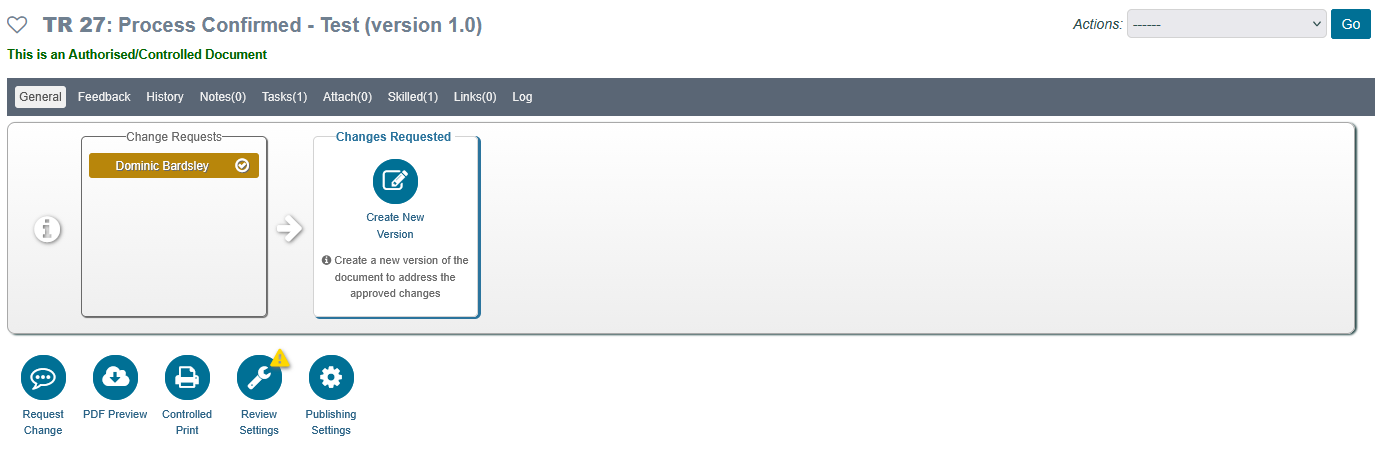
Any user who is not an owner but has "{Doc Type}:Manage Review Tasks" permission in the document’s OU will be able to process the change request. They will find details and buttons to ‘Approve’, ‘Approve for Future’ or ‘Reject’ the request by clicking the speech bubble (?) icon in the Change Requests box within the information area under the document’s tab ribbon.
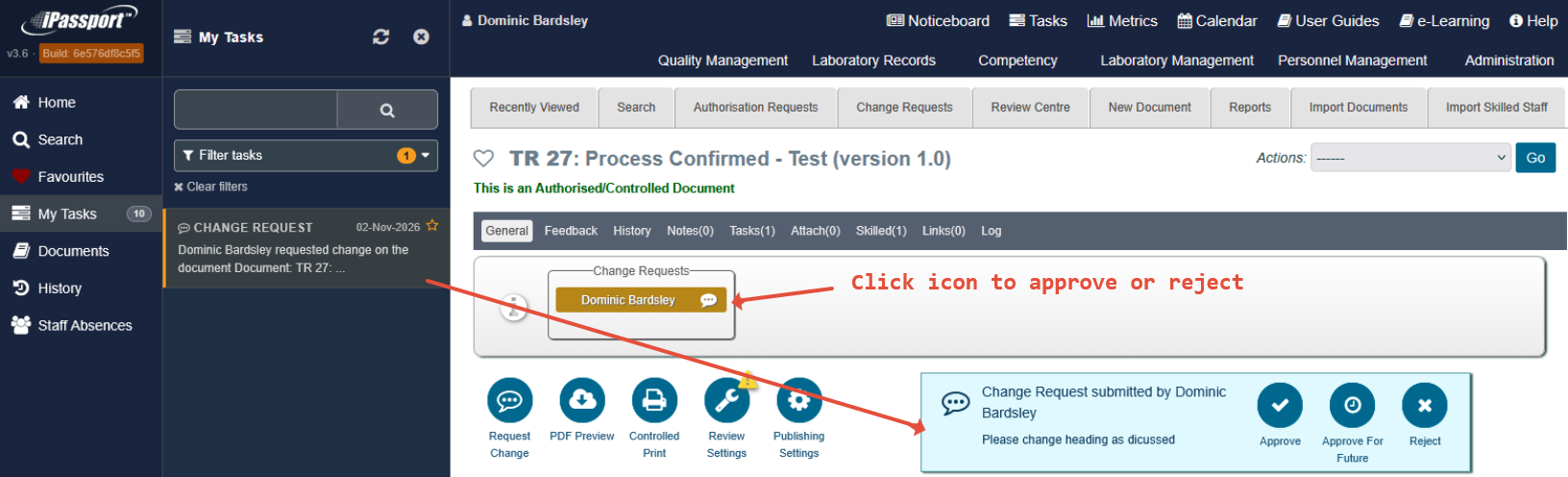
It is also possible to review changes and see the complete list of all change requests for this version of the document via the Reviews tab (also known as the Feedback tab in some locations).
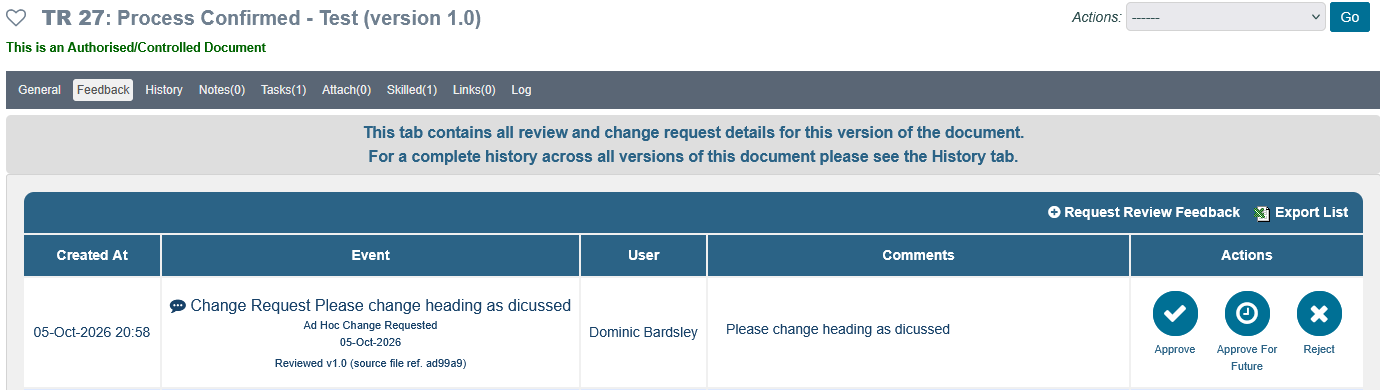
The user processing the change request must decide if it should be rejected, approved or approved for a future version.
Whenever a change request is approved, approved for future, rejected or verified, the Document Owners and the document’s review notification list are informed by email. The person who raised the request is also emailed with the outcome, unless they are a Document Owner or processed the request themselves.
Reject Change
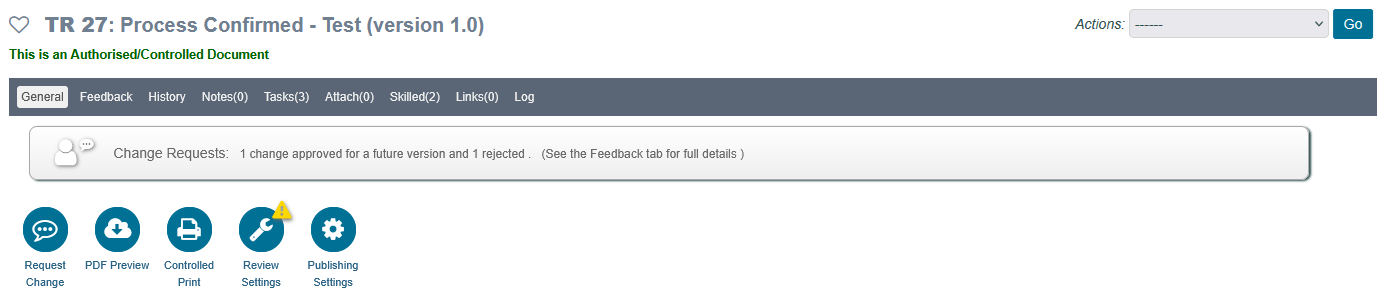
This discards the change request but maintains a record of the request along with any rejection comments for audit purposes. When a change request is rejected, it falls off the Change Requests box in the information area of the General tab but a message will indicate that there are rejected change requests and they can be viewed in the Feedback tab.
Approve Change
Approving a change indicates that the change should be actioned without delay. A new draft version of the document should be created to incorporate this change. All Document Owners will be informed that a change has been approved and will be presented with options to easily create a new draft version of the document.
Approve For Future
The Document Owner can also approve a change for later. This acknowledges that this change is required, but it does not need to be implemented immediately. Approved for Future changes can be considered as being ‘parked’ until the next time a draft version of this document is created. At that point the change will be carried over to the new version of the document and the Document Owner will see that a change has been approved for a future version. Any change requests which are still pending (not yet processed) when the new draft is created are carried over to it as well.
When a new version is due to be created as a result of a review cycle, the approved-for-future change request will display in the workflow summary so it can be considered.
When viewed in the Feedback / Reviews tab (naming dependant on locale) any user with (Doc Type):Manage Review Tasks permission (e.g. SOP:Manage Review Tasks) has the opportunity to include the change in this version or reject it if the change is no longer required or relevant.
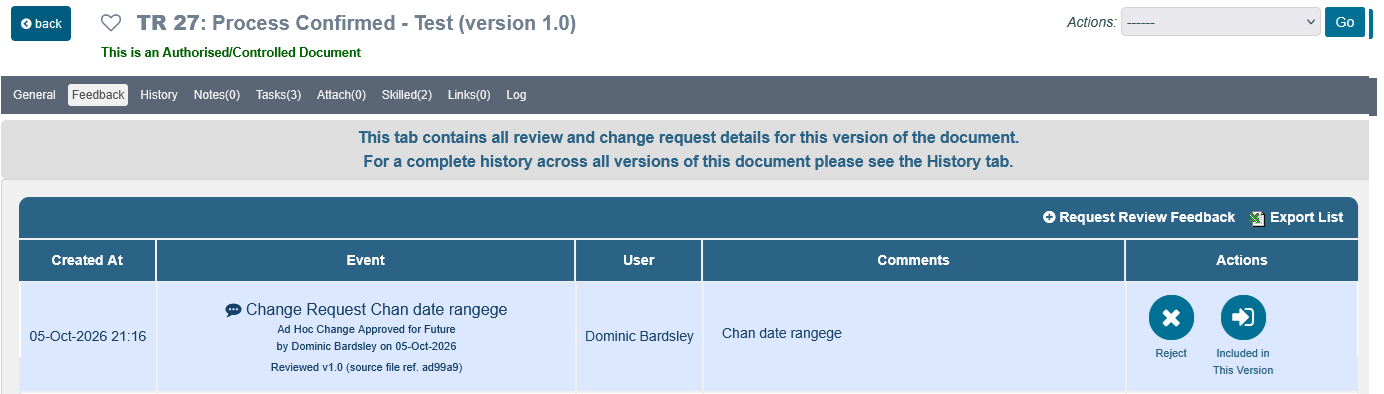
Doing nothing will simply allow the parked change to continue to roll forward to future versions of the document until such a time as the document owner chooses to action it.
Changes in this Version
Every document in iPassport has a Changes in this Version field.
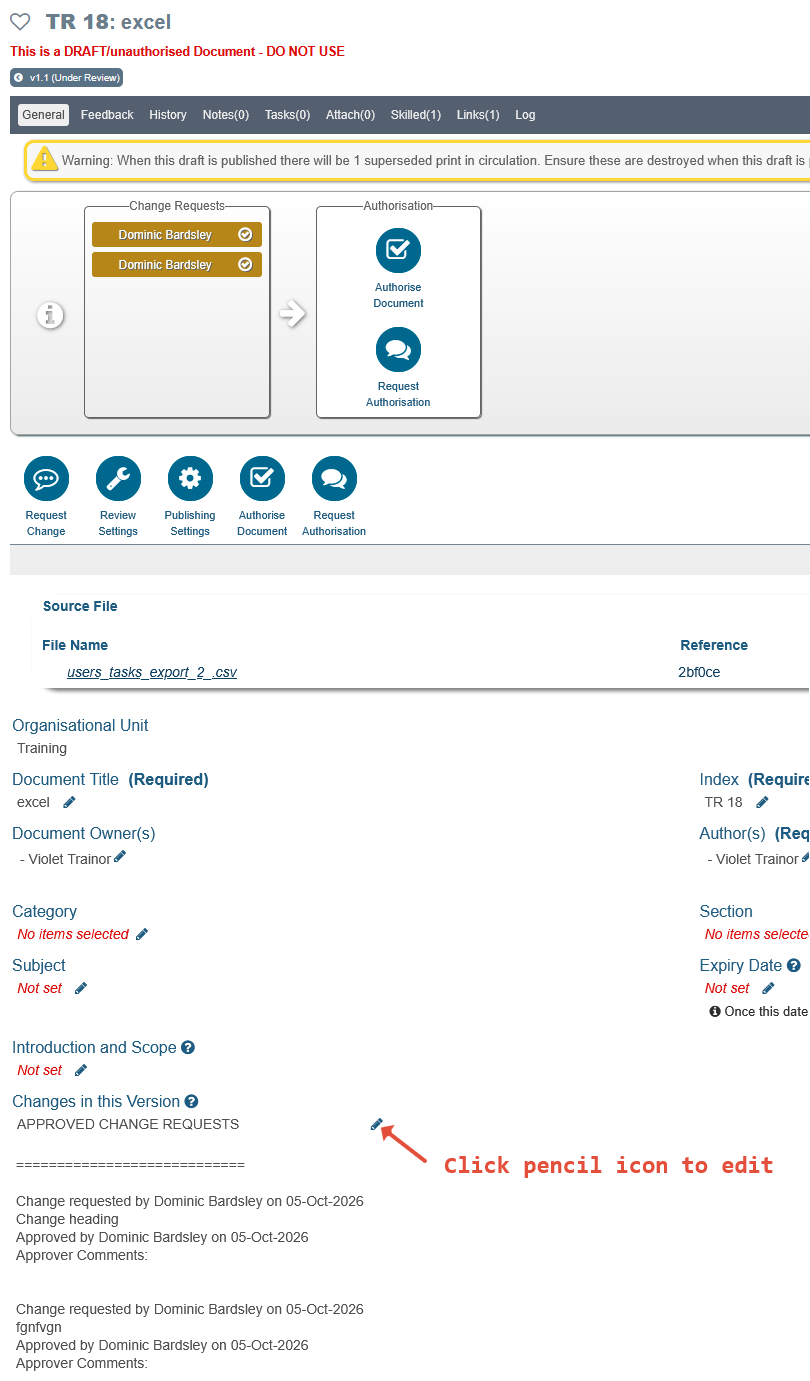
While the document is in draft state, this field can be manually edited to provide a summary of changes which is sent to staff members when they are asked to read the document.
Details of approved change requests (including approval comments) are added to this field in one of two ways:
- When the verification step is disabled, the person approving a change request can tick the option to append it to the Changes in this Version field (available while the document is in draft, pending authorisation or under review).
- Otherwise, approved and verified change requests are written into this field when a new version is created from the document.
These details can be manually edited/deleted as desired.
Feedback Tab
A full history of change requests for the current version of a document, as well as tools to manage them, can be found within the Feedback / Reviews tab. Please note that the naming of this field varies by locale. It is named either Feedback or Reviews and appears directly to the right of the General tab.
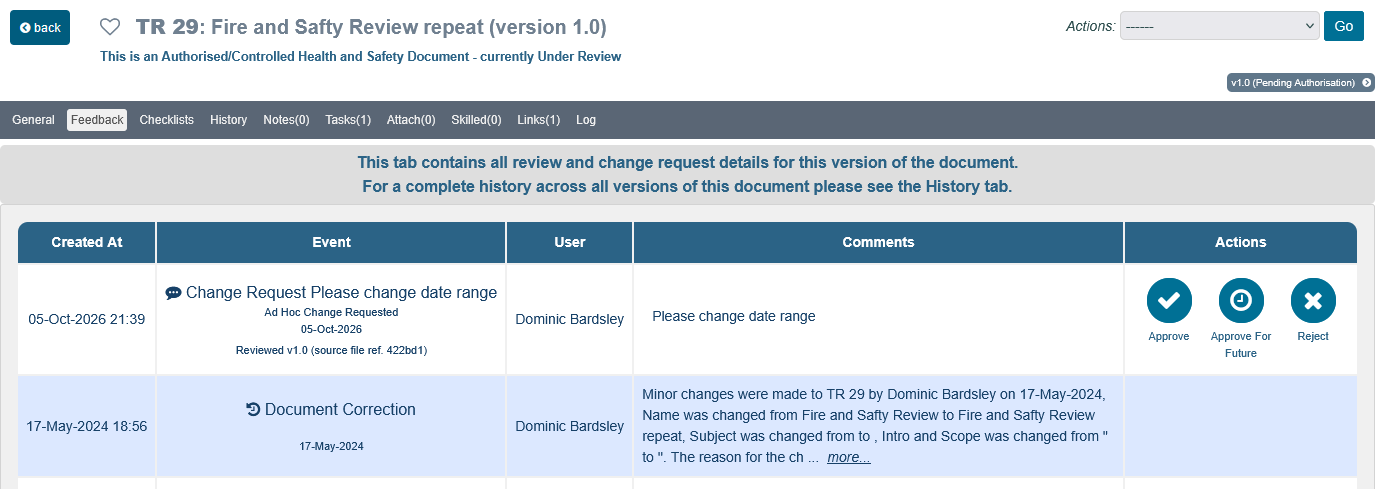
Change request verification
iPassport allows an additional optional verification step for change requests. When enabled, if a change request is approved it must also be verified (signed off) by the Document Owner(s) or users with ’(Doc Type):Manage Review Tasks’ permission (e.g. ‘SOP:Manage Review Tasks’). In this sense, a second opinion can be added to any requested changes.
‘Change Request Verification’ tasks are issued to the members of the ‘Review Verifier’ distribution list selected in the OU’s ‘Review Feedback’ preference for the document type (e.g. ‘Documents’). The user who approved the change request is not sent a verification task. If no list has been selected, no verification task is created, although users with ‘(Doc Type):Manage Review Tasks’ permission can still verify the change request from the document.
If a document is authorised before a change request has been reviewed (i.e. while it is still pending), the change request will be automatically rejected with the note, ‘Document was authorised before this change was reviewed’, and its ‘Change Request Review’ tasks will be invalidated and removed from the Tasks tab. Change requests which have already been approved and are awaiting verification are not rejected in this way, so their ‘Change Request Verification’ tasks remain in place.
The verification step is enabled by default, which shows as the preference being unselected. It can be disabled by ticking the checkbox of the preference, ‘Disable verification step for the document reviews’ in the Document Control page of the selected OU under, Administration > Settings > Organisational Unit Preferences.
Change Requests tab
This page allows viewing all change requests raised across the account for documents in the OUs (and facilities) the user can view, providing a useful tool to manage them and to prevent accidentally ignoring them.
Search filters help locate any change request and allow selecting a subset of them to produce a report.
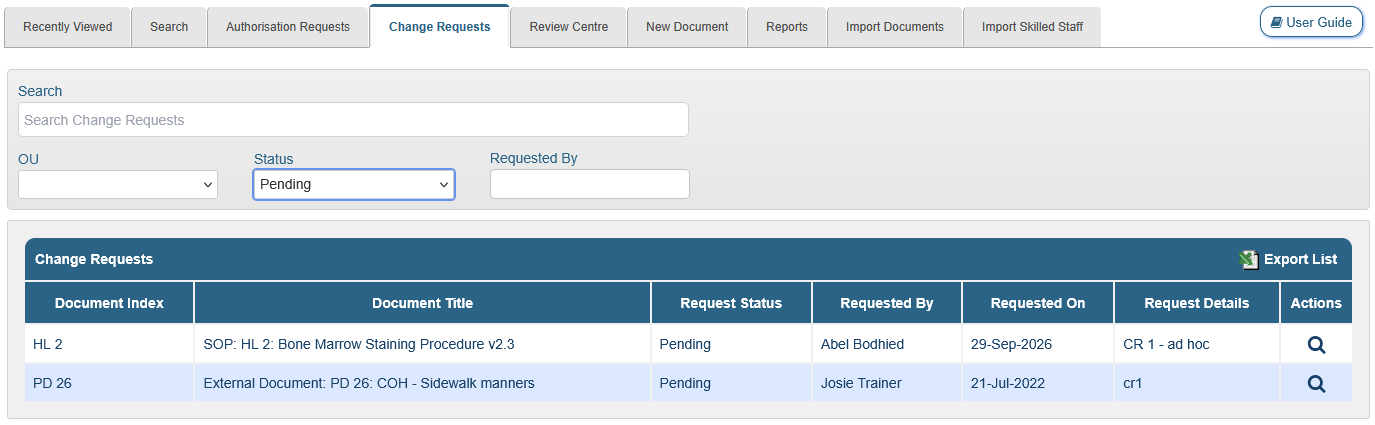
The filters available are:
- Search - a free text field which will search for text included in -
- document indices
- document titles
- change request Details note
- change request approval note
- change request rejection note
- change request verification note
- OU - a dropdown menu to display only change requests for documents in the chosen organisational unit
- Facility - (Enterprise accounts only) a dropdown menu to display only change requests for documents in the chosen facility
- Status - the following statuses can be selected -
- ‘Blank’ - selects all
- All Open - includes change requests whose status is pending or Awaiting Verification; this is the default option when the tab opens
- Pending - newly raised change requests which haven’t been processed yet
- Approved - change requests which have been approved
- Approved for Future - change requests which have been approved for a future version of the document
- Rejected - change requests which have been rejected, including those rejected at the verification step
- Awaiting Verification - this filter only applies to change requests for documents in OUs where a verification step is used; this filter will show approved change requests which haven’t been verified yet
- Verified - this filter only applies to change requests for documents in OUs where a verification step is used; this filter will show approved change requests which have also been verified
- Requested By - a search-as-you-type field which displays matches in a dropdown menu; when the name of the person who requested changes appears, it must be clicked for it to be picked
The results from any search criteria entered can be exported in spreadsheet (CSV) format by clicking the Export List link in the top right corner of the results section.
Clicking a row in the results list will jump to that document’s General tab. A back button will be available to return to the list as long as no actions are taken in the document’s record.
Was this article helpful?
That’s Great!
Thank you for your feedback
Sorry! We couldn't be helpful
Thank you for your feedback
Feedback sent
We appreciate your effort and will try to fix the article