Introduction
The My Tasks areas of iPassport allow users to see and manage all of their tasks in one place. There are two locations where My Tasks can be accessed. The left sidebar feature provides quick access and easy completion of tasks, while the Advanced Tasks Area in the global menu provides further detail and options.
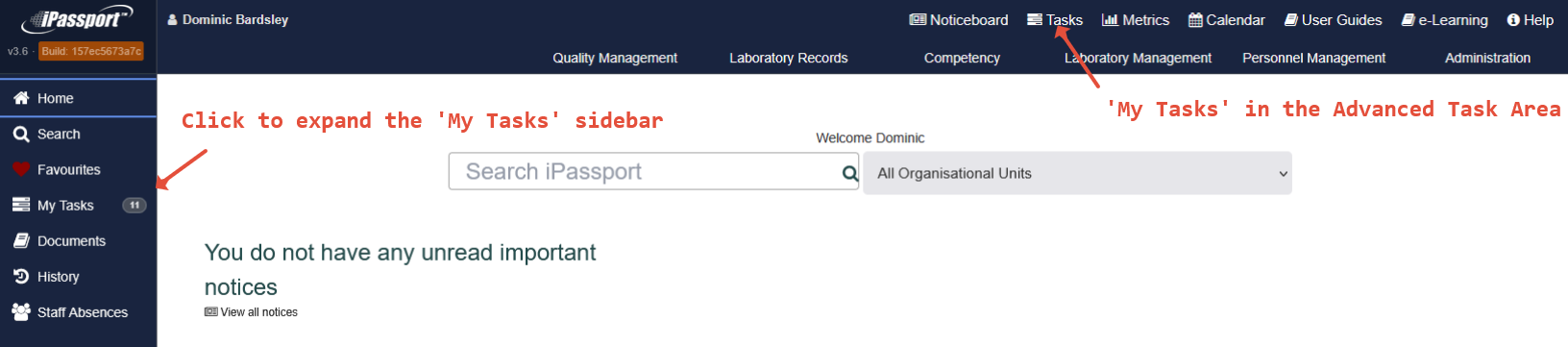
When in Detailed View, the Advanced Tasks Area can be accessed from the global menu at the top right of the screen.
In Simple View, the expanded My Tasks sidebar provides all tasks.
Sidebar My Tasks
The left sidebar access to My Tasks is designed to facilitate completion of tasks without having to navigate around the system. It's perfect for inexperienced or busy users to log in and clear their duties rapidly.
All the user's tasks are listed here and they are ordered by due date, oldest first. Each task's function is clearly labelled (e.g., Read, Review Feedback, Mark, etc.). The sidebar automatically shows up to 15 tasks and if the user has more pending, there is a "show more" button at the bottom of the list to view them.
To help manage tasks more effectively, there are filters available to select which types of tasks should be listed. For example, a document owner might have many documents to review, making it hard to access tasks listed below the 'Review Due' items listed. Filter selections are preserved between sessions.
| Note |
NOTE: SOME ITEMS ARE NOT TASKS
|
For more detail on the sidebar My Tasks area, please move on to the article, My Tasks - Sidebar Quick Access.
Global Menu Advanced Tasks Area
The My Tasks tab accessed from the Advanced Tasks Area in the global menu, offers five filters, one for starred tasks, one for general tasks and three for high level document review and publishing activities:
- The Starred Tasks filter displays any tasks (and 'Review Due' or 'Authorisation Request' notifications) which have been starred
- The Tasks filter lists all tasks
- The Documents Due For Review filter lists the same 'information' items which appear in the sidebar with the title, 'Review Due' ; as stated above, these are not tasks
- The Documents to Authorise filter lists any authorisation requests for the user logged in; as stated above, these are not tasks either
- The Documents to Approve filter lists 'review approval' and 'publishing approval' tasks assigned to the user logged in
These areas are covered in more detail in the article, My Tasks - Global Menu Area.
Permissions
The only permissions required here are those that govern the record where the task originated; all users automatically have access to My Tasks. In other words, any task can be assigned to any user but they must have permission to access the corresponding record in order to complete the task.
Contents
The following articles look at each of the two areas where My Tasks can be accessed:
Next step:
The next article covers My Tasks - Sidebar Quick Access
Was this article helpful?
That’s Great!
Thank you for your feedback
Sorry! We couldn't be helpful
Thank you for your feedback
Feedback sent
We appreciate your effort and will try to fix the article