Configuring Document Reviews
Most controlled documents require periodic reviews but not all do. For example, a user manual for a piece of equipment might never require revisions if the product doesn’t change during its lifecycle. Such documents can be configured to not require periodic reviews but still be reviewed if ever necessary. Documents which have periodic reviews set can also be reviewed at any point between scheduled reviews. This can be done by either starting a review cycle, which follows a review workflow (Start Review Workflow) or by simply triggering, Review Document from the Actions dropdown menu within a document record. When a workflow is set with periodic reviews, the review cycles will be triggered automatically by the system.
These scenarios are described below.
Configure Periodic Reviews
To configure periodic reviews, a document review workflow needs to be put in place. This can be done by assigning it in the administration settings area, prior to creating the document, or within the document itself, in the Review Settings area. It is possible to build a Custom Workflow in the review settings of each document, for special cases when the default/shared workflows are not suitable. Custom workflows are only usable in the document where they were created.
Externally Assigned Review Workflows
When a review workflow has been externally assigned to a document, clicking the Review Settings button will open a pop-up window with all the information about the workflow. If it’s not locked, the workflow can be changed for any of the options available in the dropdown menu of the field, ‘Review Workflow’.
| Note |
If a workflow has been locked in the administration settings area for the given document, the ‘Review Workflow’ field will appear greyed out and won’t be modifiable from within the document. |
The first review date will be calculated by the system, based on the frequency value of the workflow. This date can be confirmed or changed at the time of publishing a new draft version of the document.

| Tip |
There are three ways to externally assign a workflow to a document:
|
Locally Assigned Review Workflows
If no review workflow has been applied from the ‘Settings’ area, new documents will display a yellow warning triangle over the Review Settings button in the General tab.
To assign a workflow to a draft document:
- Click the Review Settings button to open the Manage Review Settings… pop-up window
- The checkbox of the field, Require periodic review of this document must be ticked to enable a workflow for this document’s reviews
- Select a workflow from the Review Workflow field’s dropdown list
- Scroll down and click Save
The first review date will be calculated by the system, based on the frequency value of the workflow. This date can be confirmed or changed at the time of publishing the draft.
To assign a workflow to an authorised document:
- Click the Review Settings button to open the Manage Review Settings… pop-up window
- Tick the checkbox of the field, Require periodic review of this document to expand the pop-up window
- Set the Next Review Date by clicking the field and selecting one from the calendar which pops up
Note It is possible to Skip this step and not set a review date. The next time the Review Settings button is clicked, the user will be prompted again to set the next review date.
- Select a workflow from the Review Workflow field’s dropdown list
- Scroll down and click Save

Information on how to create and edit workflows (both shared and custom) can be found in the article, Creating Document Review Workflows, part of the Workflows user guide.
Disable or Re-enable Periodic Reviews
When documents don’t require periodic reviews, this feature can be disabled by unticking the checkbox of the field, Require periodic review of this document. When this is done, a warning triangle (⚠️) will display over the Review Settings button to indicate the preference is unchecked. If the preference is re-enabled after switching it off, pre-existing workflows will be available again.
If a review round has pending tasks, the checkbox will be greyed out and inaccessible.
When periodic reviews are enabled by ticking the option, Require periodic review of this document, the system will prompt setting a ’next review date’ unless one has been previously set or the document is in draft state.
It is possible to Skip this step and leave the document static. If no date is set, reviews will only take place when they are manually requested.
If a date is set, it will be displayed under the document’s title.
Ad-Hoc Reviews
A document can be reviewed at any time when it is authorised (documents ‘awaiting Authorisation’, ‘pending release’, ‘superseded’ or ‘under review’ are not eligible for further reviews).
| Note |
The Review Document option is only available in the Actions menu when the user has the ‘schedule reviews’ permission for the document (e.g., “SOPs:Schedule Reviews”), there is no newer draft version of the document, and the document has no change requests that are pending, awaiting verification, approved or verified. |
If a document review workflow is in place, the review can be performed following the workflow by selecting Start Review Workflow from the Actions menu. This option is only available when the checkbox, Require periodic review of this document is ticked, the user has the ‘schedule reviews’ permission, there is no newer draft version of the document and a review cycle has not already been started. Alternatively, the review workflow can be bypassed and a simple review can be performed, without any changes to the document and only to set the next review date. For this, select the option, Review Document from the Actions menu. If a review cycle is already in progress, this option is labelled Complete Review Cycle instead.
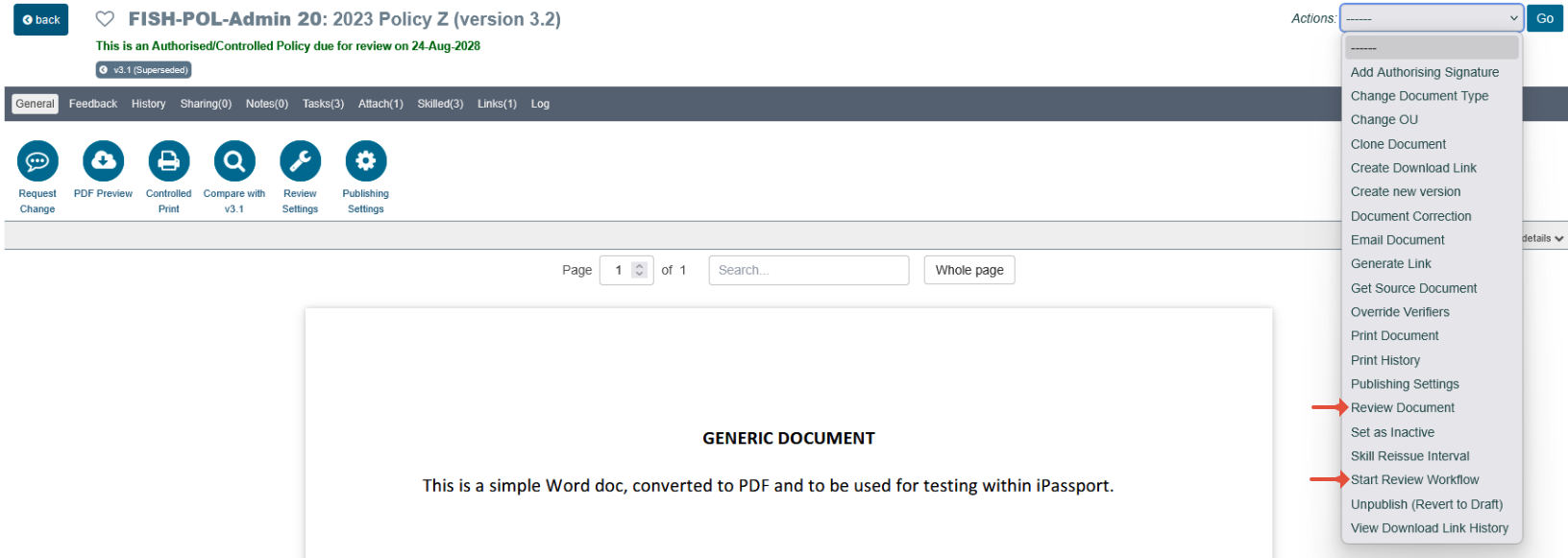
After selecting Start Review Workflow and clicking Go, a pop-up window to notify that if started, tasks will immediately be sent out to the reviewers in the first round of the workflow.

When selecting Review Document and clicking Go, a different pop-up window appears to warn that the normal review process is being bypassed. If periodic reviews are enabled, the field, Next Review Date will display and it must be populated before completing the review.
The warning shown in the pop-up depends on the state of the document:
- The warning that the normal review process is being bypassed appears when periodic reviews are enabled, a review workflow with reviewers is assigned and no review cycle has been started.
- If a review cycle is in progress, the pop-up instead warns that any open review tasks will be invalidated.
- If no review workflow is assigned, a notice states that no review workflow is configured.
Enter Comments in the field provided; this field is mandatory and the review cannot be completed without it. Click Complete Document Review to complete the review.

Next step:
The next article covers The Document Review Process
Previous step:
The previous article covers Permissions and Settings required in document reviews
Was this article helpful?
That’s Great!
Thank you for your feedback
Sorry! We couldn't be helpful
Thank you for your feedback
Feedback sent
We appreciate your effort and will try to fix the article