Organisational Units, User Groups, Roles and Permissions within iPassport
Introduction
If you are setting up your account for the first time, you should start by making the following considerations:
- Decide upon the Organisational Units (OUs) to be created
- Decide how to classify the staff into User Groups
- Assign Roles to each user group to grant relevant permissions within specific OUs
- Decide on Locations and their Tags, which are linked to OUs to help control the flow of information
The basis of documentation access is built on three pillars: Organisational Units, User Groups, and Roles.
On enterprise accounts with more than one Facility available, a Facility acts as a further layer above these three. The OU, User Group and Role forms each include a Select Facility field, and the record is then scoped to the facility chosen as well as to the OU. Accounts that are not enterprise accounts, or that have only one facility available, do not see this field.
On these accounts, who can manage a role also depends on its facility. To create, change or delete a role tied to a facility, you need the matching permission (‘Roles:Create Roles’, ‘Roles:Edit Roles’ or ‘Roles:Delete Roles’) in an OU of that facility, or to be that facility’s administrator. A role for all facilities needs the permission in every facility that has OUs. The Select Facility list only offers the facilities where you can manage roles, and if you leave it blank (a role for all facilities) without the permission in every facility, iPassport shows an error and the role is not saved. A role tied to a facility with no OUs can only be changed or deleted by an account administrator, a site administrator or that facility’s administrator, and only account and site administrators can create one there.
What are Organisational Units?
An Organisational Unit (OU) is defined as a means of grouping records into a collection so they can be managed and shared securely, according to the permissions associated with it. It can be thought of as a folder where records can be stored and which only users with appropriate permissions can access. Records include policies, procedures, checklists, standards, equipment records, competency records, incident reports, non-conforming events, etc. Access rights (permissions) vary in rank so for example, a user might be able to access a record to view it but not to edit it. OUs can be designed to reflect the departments of an organisation, like Pathology, Microbiology, etc, but they can also be used as repositories of records that are shared by more than one department, say, All Staff Policies or General Admin.
Individual records can also be shared, which is a separate route to access alongside the permissions attached to an OU: a record can be shared with named users, or with another OU, at a chosen permission level. For controlled documents, sharing requires a permission of its own (‘Controlled Documents: Share Documents’). Controlled document workflows have no separate sharing permission: at present, any user who can view a workflow (‘Workflows:View Controlled Document Workflows’) is also able to share it into another OU, without needing a create, edit or share permission. If you are relying on OU permissions to control who can widen access to records, it is worth reviewing who holds that viewing permission.
What are User Groups?
User groups allow establishing specific access permissions to their members. A user group can include any number of individuals and there can be as many user groups as required. Each user group can have different sets of permissions (roles) that only apply in designated OUs. Therefore, a member of a user group might have high level permissions in one OU and none at all in another. In fact, if a user does not have permission via a user group to access an OU, then the OU won’t be visible to them within the iPassport account. This makes the system used by iPassport an excellent way to keep details out of view from those who don’t need to see them. Typical User Groups may include System Administrators, Super Users, Managers, Technical Staff, etc.
What are Roles?
Roles are sets of permissions that define the authority a user can have in a given area. Roles are added to user groups but only in connection to specified OUs so members of a given user group can have different roles in different OUs. To accommodate a wide range of organisational structures, iPassport has a comprehensive list of permissions which can be combined in any way. To make life easier, a set of predefined (factory set) roles are available with generic functions that can help set the system up quickly. These roles can later be used as a basis to create new roles, tailored to the structure of the company. Typical examples of our pre-populated system roles include, Policies Editor, SOP Viewer, Competency Assessor, etc.
| Basic Structure in iPassport: | Allows Creating Complex Organisations: |
|---|---|
 |  |
| Note |
The administration menus and the actions described below are permission-controlled, so what you can see depends on your own permissions. The Organisational Units, User Groups and Roles menu items each require their own permission (‘Desktop:Show Organisational Units Menu Item’, ‘Desktop:Show User Groups Menu Item’ and ‘Desktop:Show Roles Menu Item’), and creating a record requires a further one: ‘Organizational Units:Create Organizational Units’, ‘Groups:Create Groups’ and ‘Roles:Create Roles’ respectively. Without the last of these, the New Role tab is not displayed at all. Menu names are also customisable per OU. The paths given in this article use the default names (Administration, Organisational Units, User Groups and Roles); if your account has renamed its menus, look for the equivalent item. |
Creating Organisational Units
To create an OU:
- Go to Administration > Organisational Units > New OU (or, click the plus sign [+] next to Organisational Units, as a shortcut)
- Enter a Short Name for the new OU; as the help text indicates, ideally choose an abbreviation that is easily identifiable
- Enter a Long Name for the new OU (this can be more descriptive as it’s generally only displayed when hovering over the short name)
- Optionally, enter a Description of the new OU
- Optionally, enter OU Contacts at this stage but this can be done later and it’s explained below
- Click Create OU

Once the OU has been created it is then possible to create groups that can be associated with it.
Adding OU Contacts
OU Contacts are the people (generally administrators with sufficient training) who can help other colleagues in that OU. These names will appear under Help > Who Can Help Me, so that larger organisations can offer local support in each department. That page opens with a single OU dropdown, defaulting to your Home OU, and shows four separate lists of people for the OU selected: OU Contacts, Admin Editors, Facility Admins and Site Admins. Only the first of these comes from the OU Contacts field; Admin Editors are the users who hold the Administration Editor role in that OU, and the remaining two lists are the account’s facility and site administrators.
Users who have the permission ‘Desktop:Show Users Menu Item’ appear in the dropdown list from which OU Contacts are picked. Note that this list is drawn from the whole account rather than from the OU being edited, and that site admins appear in it whether or not they hold that permission.
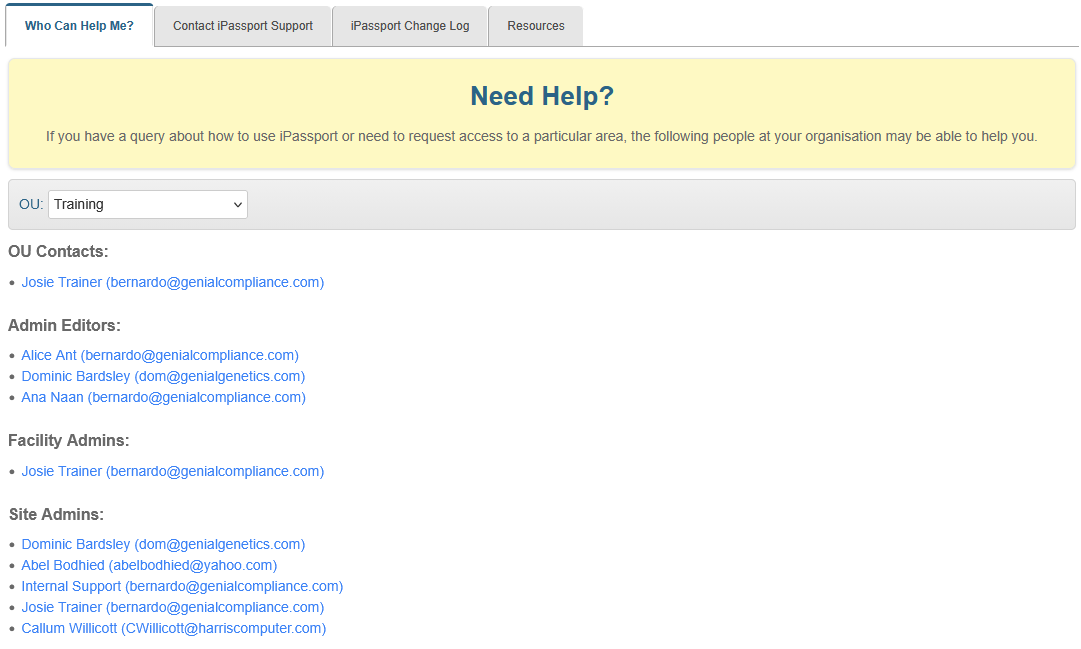
To add OU Contacts:
- Click the edit (pencil) icon under OU Contacts
- Tick or untick the checkboxes by each user to add or remove them from the list (the Filter field can be used to search for names)
- Click Save to finish
Deleting Organisational Units
OUs can also be deleted, provided you hold the permission ‘Organizational Units:Delete Organizational Units’.
To delete an OU:
- Go to Administration > Organisational Units > Search OUs (or find it in the Recent OUs list)
- Click the delete (trash/bin) icon under Actions in the row of the OU
- Confirm the deletion in the pop-up window
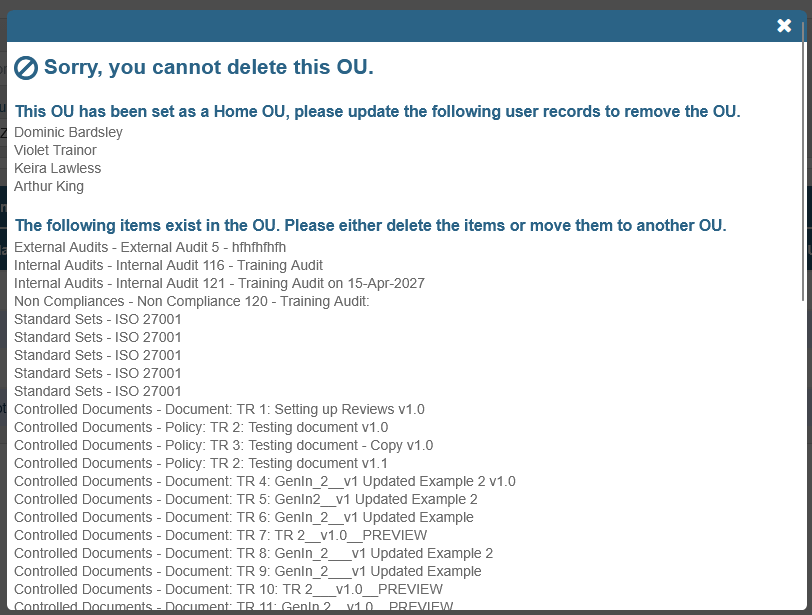
An OU cannot be deleted while it is still in use, and the pop-up window explains which condition is preventing it:
- It is set as the Home OU of one or more users — those users are listed, and each of their records must be updated to remove the OU first
- It still contains records — those items are listed, and each must be deleted or moved to another OU first
- It is the only OU in the account
If the OU can be deleted but items have been shared to it, the pop-up window warns that those items will be unshared.
Creating User Groups
To create a User Group:
- Go to Administration > User Groups > New User Group (or, click the plus sign (+) next to User Groups, as a shortcut)
- Enter a Short Name for the new User Group; as the help text indicates, ideally choose an abbreviation that is easily identifiable
- Enter a Long Name for the new User Group (this can be more descriptive as it’s generally only displayed when hovering over the short name)
- Optionally, enter a Description of the new User Group
- Click Create Group

| Note |
| It is possible to have multiple groups associated with an OU; each user group can have different permissions assigned to it for the same OU. On the other hand and from experience, though it’s possible to have multiple OUs linked to one user group, we strongly recommend that each user group is only associated with one OU to avoid confusion over what permissions a user has. |
Adding and removing users to User Groups
All users in one user group will share the same permissions, based on the roles they get assigned within a given OU. They can be members of more than one user group so that different responsibilities can be assigned to reflect the structure of the organisation. For example, only some administrators may be responsible for managing personnel so an additional user group can be created for them, rather than giving all administrators that role (Personnel Management Editor).
Users can be added and removed from a user group at any time.

To assign users to a User Group:
- Open the user group from the list under Administration > User Groups > Search User Groups by clicking its row or its magnifying glass under Actions
- Click the Users tab (the number in brackets indicates the number of users already added, both active and inactive - e.g., Users(7)); the tab also offers an All / Active / Inactive view filter to narrow the list displayed
- Click (+) Add User to Group, found on the top right of the user list section, to open the Add user to group pop-up window
- Under Add Users, tick the checkboxes by each user to add them to the list (the Filter field can be used to search for names) or,
- Optionally, if all the names to add are already collected in a Distribution List, select the distribution list under Distribution Lists
- Click Add Users

Only active, standard users are listed under Add Users. A disabled user does not appear in the list and cannot be added to a user group.
To remove users from a user group:
- Open the user group to the Users tab as described in steps 1 and 2, above
- Click the delete (trash/bin) icon under Actions on the rows of those to be taken out
At this point, the users will not have access to any OUs from the user group just created. Two more steps are required. First, OUs must be associated with the user group (we recommend only adding one OU to each user group) and then, roles need to be assigned to specify which permissions the members will be granted within that OU.
Linking an OU to a User Group
- Open the user group from the list under Administration > User Groups > Search User Groups by clicking its row or its magnifying glass under Actions
- Click the Organisational Units tab
- Click (+) Add OU, found on the top right of the OU list section, to open the Add OU pop-up window
- Start typing the name of the OU in the field, Search OUs
- Once the OU appears in the list below, click the add (+) sign on its row, under Actions

To unlink an OU from the user group, click the delete (trash/bin) icon under Actions in the row of the OU on the same tab. This removes the link between the OU and the user group, together with the roles the group had been given in that OU. The user group itself is not deleted, even though the confirmation message reads “Are you sure you wish to remove this User Group?”.
| Note |
It is also possible to link user groups to OUs from within the OU records (under Administration > Organisational Units > Search OUs, select the OU and click the Group Roles tab). |
Applying roles to User Groups within OUs (adding Roles)
The last step to set up a user’s access to certain areas of an OU is to apply roles to their group within that OU. Multiple roles can be added so that all the members of the user group can perform different functions within the designated OU. This is another good reason to keep things simple by only assigning one OU to each user group. If the staff or their functions change over time, it will be easier to maintain the permission setup.

To add roles to an OU within a User Group:
- Open the user group from the list under Administration > User Groups > Search User Groups by clicking its row or its magnifying glass under Actions
- Click the Organisational Units tab
- Click the manage (spanner/wrench) icon under Actions in the row of the OU, to open the Edit Roles pop-up window
- Tick or untick the checkboxes by each role to add or remove them from the list (the Filter field can be used to search for roles); a message pops up on the right to describe the purpose of the role, as you hover over each of them.
- Click Save

Every OU listed under a User Group should have at least one Role visible in its row to make it accessible by its members:

Managing Roles
iPassport is supplied with predefined (system) Roles to facilitate initial set up. System roles are not editable. In most cases they will be adequate but it is possible to create new roles (which can be based on existing ones) to refine the set of permissions that will be assigned to a user group.
Roles tend to be designed to cover permissions that are specific to a certain area of the system and to provide a certain rank to its users, such as viewer, editor or administrator.
The pool of permissions is classified by sections to search and identify them easily. For example, for controlled documents like policies, the permissions, Policies:View Authorised Policies, Policies:Edit Policies or Policies:Authorise Policies are available.
Searching Roles
The Search Roles tab offers the following filters to help locate roles both by their content and by where they are used:
- The Search field allows entering free text to search roles by their name
- The OU filter allows selecting one Organisational Unit and the results will display any roles linked to that OU
- The User filter is a search-as-you-type field and it will match text entered to names of users in the account; the results will bring up all the roles in all the user groups of which the person is a member
- The Permission filter is also a search-as-you-type field and it will match text entered to the permissions in the system; the results will bring up all roles that use the selected permission
- The User Groups dropdown filter allows selecting one of the existing user groups and it will bring up all the roles linked to it
- The Order Results By field allows sorting the results alphabetically by name (Name (A-Z) and Name (Z-A))
| Tip |
| You can quickly identify system roles because they can’t be deleted so they’re missing the delete (trash/bin) icon under Actions. This only works if you hold the permission ‘Roles:Delete Roles’ — without it, no role shows a delete icon and every role looks like a system role. On accounts with more than one facility, the icon is also hidden for custom roles you cannot delete: roles tied to a facility where you do not hold that permission, and roles for all facilities unless you hold it in every facility that has OUs. |

Exporting a Roles/Permissions Report
The results of a search can be exported in a report which provides a matrix of the permissions used in each role (click, Export Roles / Permissions). The export is produced in the background rather than downloaded straight away: a pop-up window appears with the message Generating your export, please be patient, and a download icon appears in it once the file is ready.
The CSV file lists all the permissions in the first column; the second column provides the description of each permission. Subsequent columns display the roles from the search result with an “X” in each row where the corresponding permission is used. A final Total column gives the number of roles using each permission, and a closing Total: row gives the number of permissions enabled in each role. The report makes it easy to compare two roles’ sets of permissions and to understand how roles are structured at a glance.
Note that the export lists every permission in iPassport, whereas the Permissions tab on screen hides permissions belonging to features your account does not have. The CSV can therefore contain permissions that cannot be seen or set on screen.

Creating and Editing Roles
To create a new role:
- Go to Administration > Roles > New Role (or, click the plus sign [+] next to Roles, as a shortcut)
- Enter a Name for the new role
- If the new role is based on an existing one, click the field under, Based on Role to expand a dropdown menu of existing roles and choose one. The permissions of the chosen role are only copied if you also hold ‘Roles:Edit Roles’ (on accounts with more than one facility, you need it for the role’s facility). If you do not, the role is created without them and a message tells you so.
- Optionally, enter a Description
- Click Create Role

To edit a role (only non-system roles can be edited):
Editing a role needs the permission ‘Roles:Edit Roles’, and on accounts with more than one facility, you need it for the role’s facility (see the start of this article). Without it the role opens read-only: its details cannot be edited and the checkboxes on the Permissions tab are greyed out.
- Go to Administration > Roles > Search Roles
- Click the row or magnifying glass under Actions for the role to edit (the role’s page opens to the General tab)
- Click the Permissions tab to open the list of permissions
- Search for the relevant permissions with the aid of the filters available or just scroll to find them
- Search - helps filter by key words within the permission name, such as "view"
- Permission Group - helps filter by ‘modules’ within iPassport, such as Personnel Management
- The option, 'Desktop' brings up permissions which reveal menu items.
- Filter by Type - helps filter by the area of the permission, which is quoted in its prefix, such as "SOPs"
- Only Show Enabled Permissions - helps focus on enabled permissions by hiding disabled ones
- Tick or untick the checkbox under Status to enable or disable a permission
Enabled permissions appear on a white/pale-blue background while disabled ones appear on a pink background.

| Note |
Each of these records also has a Changelog tab, which records the changes made to it: OU records show General / Group Roles / Changelog, user groups show General / Users(n) / Organisational Units / Changelog, and roles show General / Permissions / Changelog. On OUs and user groups the Changelog tab is only displayed to users whose permissions allow them to view history, so it may not be present for everyone. |
Was this article helpful?
That’s Great!
Thank you for your feedback
Sorry! We couldn't be helpful
Thank you for your feedback
Feedback sent
We appreciate your effort and will try to fix the article